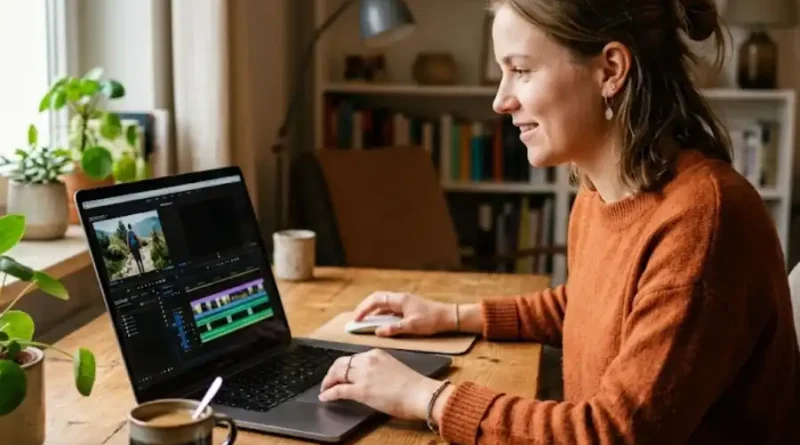
Best Video Editing Software for Beginners in 2026
You shot your first video. Maybe it was a birthday party. Maybe it was a travel clip. Maybe it was a tutorial for YouTube. Now it is sitting on your phone or computer, and you have no idea how to turn it into something worth watching.
That feeling is completely normal. Every great video creator started right where you are right now.
The good news is that you do not need expensive tools or years of training to make great videos. You just need the right software to start with. Picking the wrong one is the number one reason beginners give up too soon. The software is either too complex, too slow, or too expensive for what they really need.
This guide will help you pick the right video editing software for your skill level, your device, and your goals. No confusing tech talk. No wasted money. Just clear, no-nonsense advice so you can start editing today and enjoy the process.
What to Look For Before You Pick a Video Editor
Most articles just throw a big list of tools at you and call it a day. But picking software without knowing what to look for is like buying shoes without knowing your size. Let us fix that first.
Here are the things that matter for beginners:
- Easy interface: Can you figure out the basics without watching 10 hours of tutorials? If the buttons confuse you on day one, that is a red flag.
- Drag-and-drop timeline: You should be able to move clips around easily, the same way you move files on your desktop. This saves a lot of frustration early on.
- No watermark on exports: Some free tools put their logo on your finished video. That looks unprofessional. Always check this before downloading anything.
- Works on your device: Some tools only run on Mac. Others are Windows only. A few work on both. Make sure the one you pick runs on your computer or phone.
- Runs on normal hardware: Heavy software needs a powerful computer. If your laptop is not brand new, look for lightweight options. Laggy playback and slow exports kill motivation fast.
- Good learning resources: Does the tool have beginner tutorials on YouTube? An active community? In-app guides? This matters more than you think when you get stuck.
- Room to grow: Start simple, but pick something you will not outgrow in three months. Switching tools later means relearning everything from scratch.
Keep these seven points in mind as you read through the options below. They will help you make a smart choice the first time around.
Best Video Editing Software for Beginners in 2026
These tools were not chosen because of their name recognition alone. They are the ones that work well for beginners, based on real testing, user feedback, and what is showing up at the top of search results right now in 2026.
1. CapCut: Best Free Option for Social Media Creators
Price: Free (Pro plan available)
Works on: Windows, Mac, iOS, Android, Web browser
Best for: TikTok, YouTube Shorts, Instagram Reels, and anyone starting from zero
CapCut is probably the most beginner-friendly video editor available right now. It feels like it was built specifically for people who have never edited a video before. The interface is clean, the tools are simple, and it gets out of your way so you can focus on making content.
One of its best features is auto-captions. You press one button, and it adds subtitles to your video automatically. This matters a lot because most people scroll social media with the sound turned off. Captions keep them watching instead of scrolling past.
It also has AI-powered background removal, ready-to-use templates, auto-cut tools, and pre-loaded effects made specifically for social media. Most of these features are completely free. There is no watermark on exports either, which is a huge win compared to many other free tools.
The main downside is that CapCut is not ideal for longer videos like full YouTube tutorials or mini-documentaries. It shines brightest for short-form content under 15 minutes.
Who should pick CapCut: If you want to make TikTok videos, Instagram Reels, or YouTube Shorts and you want results fast without spending a dime, start here. It is the fastest path from zero to a finished video.
2. iMovie: Best Free Option for Mac and iPhone Users
Price: Free (comes with every Apple device)
Works on: Mac, iPhone, iPad
Best for: Apple users who want clean, polished videos without a steep learning curve
If you have a Mac, an iPhone, or an iPad, you already have iMovie installed for free. And it is genuinely one of the best places to start learning video editing.
iMovie uses what Apple calls a magnetic timeline. Clips snap together automatically, and gaps cannot form by accident. For beginners, this removes a whole class of common mistakes before they ever happen. The interface looks clean and feels intuitive from the very first session.
The pre-loaded templates in iMovie look professional straight out of the box. You can add titles, music, transitions, and basic color effects without any editing background at all. It also exports in 4K, which means your videos look sharp on any screen.
The downside is simple: iMovie only works on Apple devices. Windows users cannot use it at all. Also, as your skills grow, iMovie will start to feel limited. But Apple designed Final Cut Pro as the natural next step, and everything you learn in iMovie carries over smoothly.
Who should pick iMovie: Any beginner who uses an iPhone, iPad, or Mac. It is free, already on your device, and makes you look good fast.
3. Wondershare Filmora: Best Paid Option for Beginners
Price: Around $49.99 per year (free trial available)
Works on: Windows, Mac
Best for: Beginners who want pro-looking results without a steep learning curve
Filmora is designed from the ground up for people who are new to video editing. Everything about it feels approachable. The layout is clean, the tools are labeled clearly, and the whole experience guides you through the process instead of overwhelming you with options.
What makes Filmora stand out is its included asset library. You get access to transitions, effects, royalty-free music, and title animations that are all part of your subscription. You do not have to hunt for background music or spend hours building intro animations from scratch. It is all right there inside the app.
In 2026, Filmora has also added strong AI features. It can remove background noise from your audio, generate auto-captions, and stabilize shaky footage automatically. These are the kinds of tools that used to cost hundreds of dollars as separate apps.
It is not free, but the price is fair for what you get. And compared to Adobe Premiere Pro, it is much easier to learn and much more affordable for someone just getting started.
Who should pick Filmora: Beginners who are serious about making YouTube videos or social content and want a paid tool that does not feel overwhelming on day one.
4. DaVinci Resolve: Best Free Option If You Want to Grow
Price: Free (Studio version is a one-time purchase of $295)
Works on: Windows, Mac, Linux
Best for: Beginners who want to eventually become serious editors or work professionally
Here is the real story with DaVinci Resolve: it is not the easiest tool to learn on day one. It looks more complex than the other options on this list. But it is completely free, and it is the same software used by professional editors to cut real movies and television shows in Hollywood.
Why is it on a beginner’s list? Because if you are willing to put in a little extra time upfront, you will never need to switch software as your skills grow. Most beginners have to upgrade their tools two or three times, starting over each time. With DaVinci Resolve, you can go from complete beginner to professional without ever changing apps.
Blackmagic Design, the company behind DaVinci Resolve, offers free training materials on their official website. There are also thousands of beginner-friendly tutorials on YouTube. The learning community around this software is one of the strongest in the entire world of video editing.
One important note: DaVinci Resolve runs best on a computer with at least 16GB of RAM and a decent graphics card. On older or slower laptops, it can run sluggishly. Check your system specs before downloading.
Who should pick DaVinci Resolve: Beginners who plan to get serious about video editing and want a free, professional-grade tool they can use for years without ever feeling limited.
5. Adobe Premiere Elements: Best for Hobbyists Who Want Pro Results
Price: $99.99 one-time purchase (no monthly subscription)
Works on: Windows, Mac
Best for: Hobbyists, family video makers, and beginners who want Adobe quality without Adobe complexity
Adobe Premiere Elements is the beginner-friendly version of Adobe Premiere Pro, one of the most widely used professional video editors in the world. The key difference is that Elements removes the complicated parts and replaces them with a more guided and welcoming experience.
It has a feature called Guided Edits that walks you through popular effects step by step. Want to add a slow-motion effect or a double exposure? Guided Edits shows you what to click and in what order. This is a great way to learn while making something you will enjoy.
You pay once and own it forever, with no recurring monthly fees. That makes it a great long-term deal compared to most subscription-based software. It also uses Adobe’s AI technology to automatically improve your videos, including smart features like subject tracking, scene detection, and video stabilization.
The trade-off is that it is not as powerful as Premiere Pro, and it is missing some of the deeper features professionals need. But for a beginner or hobbyist, it has everything you need and more.
Who should pick Premiere Elements: Anyone who dislikes subscription fees and wants a simple, step-by-step editing experience backed by Adobe’s trusted technology.
6. Clipchamp: Best Option for Windows Users Who Want to Start Today
Price: Free (pre-installed on Windows 10 and 11)
Works on: Windows (also available as a web app)
Best for: Windows users who want to start editing today with zero downloads
Clipchamp is made by Microsoft and comes pre-installed on Windows 10 and 11. If you are on a Windows computer right now, you can open Clipchamp this second without downloading a single thing.
The interface is clean and modern. You get a simple timeline, text tools, transitions, a screen recorder, and a webcam recorder all in one app. You can also export videos without a watermark on the free plan, which puts it ahead of many other no-cost tools.
It is not the most powerful editor on this list. You will not find pro-level color grading or professional audio mixing inside Clipchamp. But for a beginner who just wants to trim clips, add some background music, put together a short video, and export it cleanly, it works perfectly and costs nothing.
Who should pick Clipchamp: Windows users who want to start right now with no setup, no cost, and no complicated learning process.
Which One Should You Start With? A Quick Decision Guide
Still not sure which one fits you best? Go through these quick questions and the right answer will become obvious:
- Do you use an iPhone, iPad, or Mac? Start with iMovie. It is free and already on your device.
- Do you use Windows and want to start right now? Open Clipchamp. It is already installed and ready to go.
- Are you making TikToks, Reels, or YouTube Shorts? Download CapCut. Nothing on this list beats it for short-form content.
- Are you serious about YouTube and willing to pay a little? Go with Filmora. It grows with you without overwhelming you.
- Do you want to become a professional-level editor one day? Start learning DaVinci Resolve now. The free version is better than most paid tools.
- Do you hate monthly fees and want something guided and simple? Buy Adobe Premiere Elements once and you are set for years.
One tip that most beginners ignore: pick one tool and stick with it for at least 30 days before deciding it is not right for you. Jumping between different editors every week is the fastest way to learn nothing. Consistency always beats trying to find the “perfect” tool.
Beginner Mistakes to Avoid When Picking Video Editing Software
Most beginners make the same mistakes when choosing their first video editor. Here are the biggest ones, and how to avoid them from the start:
- Picking the most popular tool instead of the most beginner-friendly one. Adobe Premiere Pro and Final Cut Pro are excellent, but they were built for professionals. Jumping into them on day one is like learning to drive in a race car. Start with something built for beginners.
- Going for the cheapest option without checking for watermarks. Some free tools put their logo on every video you export. That looks unprofessional and can be embarrassing. Always check the export settings before committing to any free tool.
- Ignoring system requirements. Heavy software on a slow computer leads to freezing, crashing, and a lot of frustration. Always check if your computer meets the minimum requirements before downloading anything.
- Trying to learn every feature before finishing your first video. You do not need to know everything. Learn the basics: trim, cut, add music, add a title, export. That is enough to make a solid first video.
- Switching tools too often. Every time you change software, you start your learning from zero. Give each tool real, dedicated time before deciding it is not the right fit.
Simple Tips to Learn Video Editing Faster
The software you choose is only part of the equation. How you practice with it matters just as much. Here are a few habits that will speed up your learning no matter which tool you pick:
- Start with a tiny project. Do not try to make a masterpiece first. Take three clips from your phone, trim them, add a song, and export. Do that first. It builds real confidence very quickly.
- Watch YouTube tutorials for your specific tool. All six tools on this list have thousands of free tutorials. Search your tool name followed by “for beginners 2026” and you will find step-by-step guides made for your level.
- Finish more videos, not fewer perfect ones. You will learn more from finishing five simple videos than spending three weeks perfecting one. Every finished video teaches you something the next one will benefit from.
- Use templates at first. There is no shame in using pre-built templates when you are just starting out. They help you understand what polished editing looks like, and you can customize them more and more over time.
- Pay attention to audio quality. Bad audio ruins a great video faster than anything else. Even small adjustments, like lowering the music volume or removing background noise, make a huge difference in how professional your videos feel to viewers.
- Export and publish even if it is not perfect. Watching real viewers respond to your actual videos teaches you things no tutorial ever will. Do not wait until it is flawless. Publish it, learn from the feedback, and make the next one better.
Frequently Asked Questions
What is the easiest video editing software for a complete beginner?
CapCut is currently the easiest option for most beginners, especially for short videos and social media content. For Mac and iPhone users, iMovie is equally easy and already free on your device. Both tools let you finish a watchable video within your very first hour of learning.
Is there any good free video editing software with no watermark?
Yes. CapCut, iMovie, DaVinci Resolve, and Clipchamp all let you export videos without a watermark on their free plans. These four tools are among the best free options available right now and none of them will stamp their logo on your finished video.
Can a complete beginner use DaVinci Resolve?
Yes, but it takes more patience than the other beginner tools on this list. DaVinci Resolve has a steeper learning curve, but it is free and incredibly powerful. If you are willing to invest a little extra time learning it upfront, you will likely never need to switch to another tool as you grow. Blackmagic Design offers free training videos on their official website to help new users get started the right way.
Do I need an expensive computer to edit videos?
Not necessarily. Tools like CapCut, iMovie, and Clipchamp run well on everyday computers and smartphones. DaVinci Resolve and Adobe Premiere Elements need a bit more processing power to run smoothly. Always check the system requirements for any software before downloading it to avoid performance issues.
Should I start with free software or paid software?
Start with free software. Use CapCut, iMovie, or Clipchamp for your first several videos. Once you know you genuinely enjoy video editing and have a clear goal in mind, then consider moving to a paid tool like Filmora or Adobe Premiere Elements. There is no reason to spend money before you know what you need.
How long does it take to learn basic video editing?
With a beginner-friendly tool, most people can pick up the basics in one to two weeks of regular practice. Trimming clips, adding background music, inserting titles, and exporting a clean video are all skills you can learn quickly. Things like color grading and motion graphics take longer, but you do not need them to make great videos as a beginner.
Is CapCut safe to use in the United States?
CapCut is developed by ByteDance, the same company that owns TikTok. There have been ongoing privacy discussions in the United States around ByteDance apps and data handling. If privacy is a concern for you, consider using alternatives like iMovie, Clipchamp, DaVinci Resolve, or Filmora. All four are trusted tools with solid privacy track records and no data concerns tied to them.
Video editing is one of those skills that keeps getting more valuable every single year. Businesses need video content. Creators need video content. Teachers, coaches, and even job seekers are using video more than ever before. Starting now, even with the simplest free tool, puts you ahead of most people who are still thinking about it. Pick one option from this list, download it today, and make your first video this week. You will be surprised by how fast you improve once you simply begin.