Antivirus Software for Windows PC: What Really Works in 2026
Here is something that might surprise you. Microsoft just officially said that most Windows 11 users do not need extra antivirus software. That is a big deal coming from the company that makes Windows itself. So before you spend another dollar on a security subscription, read this first.
This article covers everything you need to know about antivirus software for Windows PC. We will look at what is already protecting your computer right now, when paying for more makes sense, and which tools are worth it if you do decide to upgrade. No confusing tech talk, just clear, straight answers.
Does Your Windows PC Already Have Antivirus Protection?
Yes, and it is probably better than you think.
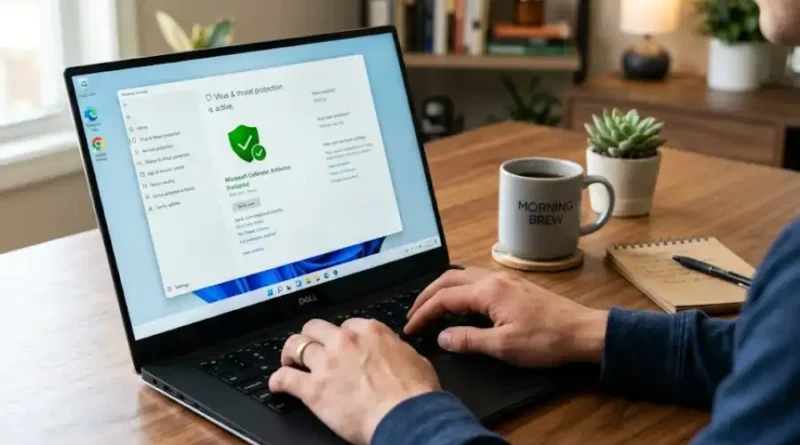
Every Windows 10 and Windows 11 PC comes with something called Microsoft Defender Antivirus. It runs in the background automatically. You do not need to set it up. You do not need to pay for it. It is just there, doing its job quietly while you use your computer.
In April 2026, Microsoft published an official statement saying that for most everyday Windows 11 users, Defender already covers their risk. These were their words:
“For many Windows 11 users, Microsoft Defender Antivirus covers everyday risk without requiring additional software. The choice to add third-party antivirus depends on how you use your PC and which features you value.”
That is a bold statement. And independent lab tests back it up. The latest testing by AV-TEST, one of the most trusted antivirus testing organizations in the world, gave Microsoft Defender a perfect 6 out of 6 in protection, performance, and usability. That puts it right alongside the biggest names in paid antivirus software.
What Does Windows Defender Protect You From?
A lot more than most people realize. Here is what Defender does for you by default, without you lifting a finger:
- Viruses and malware: Defender scans files when you open or download them and removes threats automatically before they can cause damage.
- Phishing attacks: A feature called SmartScreen checks websites, downloads, and apps for known dangers before you ever open them.
- Ransomware: Controlled folder access locks your personal files so no unauthorized program can change or delete them without your permission.
- Untrusted apps: Smart App Control blocks apps that are not properly verified from running on your PC in the first place.
- Brand new threats: Defender connects to Microsoft’s cloud to catch threats in real time, even ones that just appeared hours ago.
Best of all, it updates itself automatically through Windows Update. You do not have to do a single thing to keep it current.
When Should You Still Get a Third-Party Antivirus?
Defender is the right choice for most everyday users. But there are situations where adding extra protection genuinely makes sense.
Consider a paid or third-party antivirus if any of these apply to you:
- You share your PC with children or family members who might click on dangerous links without realizing it.
- You manage multiple devices and want one single dashboard to handle security across all of them.
- You want parental controls to manage what your kids can access online.
- You want identity theft monitoring that alerts you if your personal information appears somewhere it should not.
- You use public Wi-Fi frequently and want a VPN that comes included to keep your connection private and encrypted.
- You regularly download files from many different sources and want an extra layer of scanning for peace of mind.
If none of those situations fit you, Windows Defender is almost certainly doing a fine job already.
Best Antivirus Software for Windows PC in 2026
If you decide that extra protection is right for you, here are the best options available today.
1. Norton 360 Deluxe (Best Overall Pick)
Norton 360 is the most well-rounded antivirus for most home users. One subscription gets you antivirus protection, a VPN, a password manager, parental controls, dark web monitoring, and 50GB of cloud backup storage. It is the top choice for families who want everything bundled into one easy package.
2. Bitdefender Total Security (Best for System Performance)
Bitdefender is incredibly light on your PC. You will not even notice it is running. Yet it catches threats just as effectively as heavier software. It is a great pick if you have an older machine or simply want protection without any slowdown.
3. McAfee Total Protection (Best for Privacy)
McAfee puts a strong focus on keeping your personal information private. Its anti-phishing and Wi-Fi protection tools rank among the best in the business. It also covers unlimited devices on certain plans, making it a smart pick for households with lots of gadgets.
4. Avast Free Antivirus (Best Free Third-Party Option)
If you want more features than Defender offers but do not want to pay, Avast is the most popular free antivirus available. It is beginner-friendly and adds some useful tools that Defender does not include. Just be aware the free version shows occasional promotions for its paid plan.
5. AVG AntiVirus Free (Best Budget Pick)
AVG is made by the same company as Avast and works in a very similar way. It is clean, simple, and effective. A solid choice for anyone who just wants reliable basic protection at zero cost.
Free vs. Paid Antivirus: Which One Is Right for You?
Here is a simple way to think about this decision.
Stick with Windows Defender if:
- You use your PC for normal tasks like browsing, email, and streaming.
- You keep Windows updated regularly.
- You are careful about what you download and which links you click on.
Consider a paid antivirus if:
- You want extras like a VPN, identity protection, or parental controls.
- You share your PC with kids or people who are less careful online.
- You run a small business and handle sensitive customer data.
One important rule: never run two real-time antivirus programs at the same time. They will conflict with each other and can make your PC less safe, not more. When you install a trusted third-party antivirus, Windows Defender automatically steps aside. Pick one solution and stick with it.
Warning Signs Your Windows PC May Already Be Infected
Sometimes a virus gets in before you even realize there is a problem. Watch out for these warning signs:
- Your PC is noticeably slower than usual for no clear reason.
- Pop-up ads appear even when your browser is not open.
- Programs open or close on their own.
- Your browser homepage or default search engine changed without you doing it.
- Your battery drains much faster than it used to.
- You cannot open Windows Security or your antivirus settings.
If you spot any of these signs, run a full system scan with Windows Defender right away. If the problem continues, try running a free malware removal scan with Malwarebytes. It works alongside Defender and is excellent at catching threats that regular antivirus tools sometimes miss.
Simple Habits That Keep Your PC Safe Every Day
No antivirus software can protect you perfectly all on its own. Your daily habits matter just as much as the tools you use. These five habits make a real difference:
- Keep Windows updated. Most attacks target older, unpatched versions of Windows. Updates close those security holes fast.
- Only download from official sources. Stick to official websites and trusted app stores. Avoid links in unexpected emails or random forum posts.
- Think before you click. If a link looks strange or a message feels off, trust that instinct and do not click.
- Use strong, unique passwords. A free password manager like Bitwarden can help you create and store them without any effort.
- Back up your files regularly. If ransomware ever hits, a recent backup means you lose nothing. An external hard drive or a cloud service like OneDrive both work great.
Frequently Asked Questions
Is Windows Defender good enough for Windows 10?
Yes, for most users it absolutely is. Windows Defender runs on Windows 10 and does a solid job protecting against common threats. Just make sure automatic updates are turned on so it stays current.
Do I need antivirus software if I barely use my PC?
Even light use can expose you to threats through email links, browser ads, or malicious websites. Windows Defender handles these situations well, so it is more than enough for occasional or low-risk users.
Can I trust free antivirus software?
Yes, if it comes from a known company like Avast, AVG, or Microsoft. Be very careful with unknown free tools promoted on random websites. Some of them are malware pretending to be security software.
Will antivirus software slow down my Windows PC?
Windows Defender has very little impact on speed since it is built directly into the operating system. Some third-party programs can cause slowdowns, especially during full scans. Bitdefender and Norton are both known for being especially light on system resources.
What is the best free antivirus for Windows 11?
Windows Defender is genuinely the best free option for most Windows 11 users. It is already installed, scores at the top of independent lab tests, and causes zero conflicts since it is part of the OS. If you want a free third-party alternative, Avast and AVG are both reliable choices.
Should I uninstall Windows Defender after installing another antivirus?
You do not need to. When you install a reputable third-party antivirus, Windows Defender automatically disables its active scanning to avoid any conflict. It stays on your system as a backup but knows to step aside gracefully.