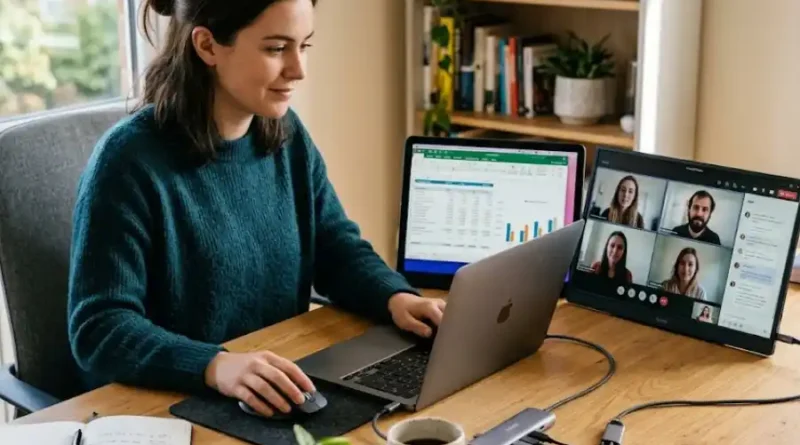
Portable Monitor for Laptop Setup: How to Choose, Connect, and Get More Done
You are staring at your laptop screen. Three tabs are open. A spreadsheet is hiding behind a video call. And somewhere under all of that is the file you really need. Sound familiar?
This is the daily struggle for millions of laptop users. And the fix is simpler than you think. A portable monitor gives you a second screen that fits in your bag and sets up in minutes. No heavy equipment. No complicated installation. Just more space to work.
This guide covers all the basics of setting up a portable monitor for your laptop. Whether you are a student, a remote worker, or someone who just wants to stop switching tabs all day, you will find what you are looking for right here.
What Is a Portable Monitor?
A portable monitor is a slim, lightweight screen that connects to your laptop to give you extra display space. Think of it like a second screen, but one that slides into your laptop bag without any trouble.
Unlike a regular desktop monitor, a portable monitor is designed to travel with you. Most weigh under two pounds. Many are thinner than a pencil. And the best ones only need a single cable to work.
People use portable monitors at home, in coffee shops, in hotel rooms, and even on airplanes. Once you have one, you will wonder how you ever managed without it.
Who Should Use a Portable Monitor?
Portable monitors are for everyone, not only tech enthusiasts. Here is a look at who benefits the most:
- Remote workers: If you work from home or travel often, a second screen makes video calls, documents, and emails much easier to manage at the same time.
- Students: Keep your notes open on one screen and your lecture or research on the other. No more switching windows every 30 seconds.
- Freelancers and designers: Having extra screen space lets you keep your design tools on one side and your work on the other. This is a huge time-saver.
- Programmers: Write code on one screen and run your debugging tools on the other. Fewer mistakes. Faster work.
- Gamers: Use a portable gaming monitor for a bigger, smoother display no matter where you play.
- Business travelers: Turn any hotel desk or airport lounge into a proper workstation in under five minutes.
If you spend more than four hours a day on a laptop, a portable monitor will almost certainly improve how you work.
What to Look for Before You Buy
Not all portable monitors are the same. Here are the key things to check before spending your money.
Screen Size
Most portable monitors come in sizes between 13 inches and 17 inches. A 15.6-inch screen is the most popular choice because it gives you plenty of space without being too heavy to carry. If you move around a lot, stick to 13 to 15 inches. If you mostly work from a desk, a 15 to 17-inch screen is worth it.
Resolution
Full HD (1920 x 1080) is the standard for most portable monitors and works great for everyday tasks. If you do photo editing, video work, or design, consider a monitor with higher resolution like 2K or 4K. Just keep in mind that 4K monitors use more power from your laptop.
Brightness
Brightness is measured in nits. For indoor use, 250 to 300 nits is fine. If you plan to work outside or in bright places, look for at least 400 to 500 nits. A dim screen in a sunny coffee shop is one of the most frustrating things you can experience.
Connection Type
This is where people get confused. There are three main ways to connect a portable monitor to your laptop:
- USB-C: This is the cleanest and most common option today. One cable handles both the video signal and the power. But there is a catch. Not every USB-C port supports video output. Look for ports with a small lightning bolt or DisplayPort symbol. Those are the ones that work for monitors.
- HDMI or Mini HDMI: Works with almost every laptop but requires a separate power source for the monitor. Good as a backup option.
- USB-A: Some older monitors use this. It works, but the image quality is usually lower. Avoid if possible.
The safest choice is a monitor that supports both USB-C and Mini HDMI. That way, you are covered no matter what laptop you use.
Panel Type
IPS panels are the best choice for portable monitors. They show accurate colors and look good from different angles. This matters a lot if you often work at a cafe where you cannot always sit straight in front of the screen.
Weight
Look for a monitor under 2 pounds if you carry it daily. Anything heavier starts to feel like a burden after a week of travel.
Attached Stand
A good attached stand saves you from carrying extra accessories. Many portable monitors come with a case that doubles as a stand. Make sure the stand can hold the monitor at a comfortable angle for your eyes.
How to Set Up a Portable Monitor for Your Laptop: Step by Step
Setting up a portable monitor is easy. Most people have it running in less than five minutes. Here is how to do it, step by step.
- Check your laptop ports. Look at the sides of your laptop. Do you see a USB-C port, an HDMI port, or both? If you have USB-C, check if it supports video output. You can search your laptop model online to confirm this.
- Get the right cable. If you have a USB-C port that supports video, use a USB-C to USB-C cable. If not, use an HDMI to Mini HDMI cable and plug a separate USB power cable into the monitor as well.
- Set up the monitor stand. Open the stand or case that came with your monitor. Place it on a stable surface next to your laptop.
- Connect the cable. Plug one end into the monitor and the other end into your laptop. For USB-C setups, one cable is all you need. For HDMI setups, also connect the power cable to a USB port or power adapter.
- Turn on the monitor. Most portable monitors power on automatically when connected. If not, press the power button on the side.
- Adjust display settings. Your laptop should detect the monitor right away. If not, go to your display settings and click “Detect” or “Detect Displays.”
That is all. Your second screen is ready to use.
Extend Mode vs. Duplicate Mode: Which One Is Right for You?
Once your monitor is connected, your laptop will ask how you want to use it. This is one step that confuses most beginners. Here is a simple breakdown:
- Duplicate Mode: Both screens show the same thing. Use this for presentations when you want your audience to see the same thing you see.
- Extend Mode: Each screen shows something different. This is the mode you want for work and study. It doubles your workspace. You can drag windows from one screen to the other.
- Second Screen Only: Your laptop screen turns off and only the external monitor runs. Some people prefer this when they are using a laptop in clamshell mode with a keyboard and mouse.
For everyday work, always choose Extend Mode. It gives you the most screen space and makes multitasking much easier.
How to Switch to Extend Mode on Windows
Press the Windows key + P on your keyboard. A small menu appears on the right side. Select Extend. Done.
How to Switch to Extend Mode on Mac
Go to System Settings, then click Displays. Uncheck the Mirror Displays box. Your screens will now extend automatically.
Smart Tips to Get the Best Results from Your Setup
These tips will help you get the most out of your portable monitor from day one.
- Match the brightness on both screens. If one screen is much brighter than the other, your eyes will work harder to adjust. Set both screens to a similar brightness level.
- Position the monitor at eye level. Looking down at a screen for hours causes neck pain. Use a stand or prop the monitor up slightly so the top of the screen is at eye level.
- Use a USB hub if you run out of ports. A small USB-C hub adds extra ports so you can connect your monitor, charge your laptop, and plug in a mouse all at once.
- Carry a power bank for outdoor use. Some portable monitors can draw power from a power bank. This is very useful when you work in places without power outlets.
- Assign tasks to each screen. Put your main work on your laptop screen and keep reference material, email, or Slack on the portable monitor. Sticking to a pattern helps your brain focus faster.
- Enable eye care mode if available. Many portable monitors have an included blue light filter. Turn this on for evening work. It reduces eye strain during long sessions.
Common Problems and How to Fix Them
Even with the best setup, things can go wrong. Here are the most common issues and their quick fixes.
The Monitor Shows a Black Screen
First, check that the cable is plugged in firmly on both ends. Then check that the monitor is powered on. On HDMI setups, make sure the power cable is also connected. If the screen is still black, try pressing the input button on the monitor to select the correct signal source.
The Monitor Is Detected but Shows “No Signal”
Unplug the cable, wait ten seconds, and plug it back in. On Windows, press Windows + P and select Extend. On Mac, go to System Settings, hold the Option key, and click Detect Displays.
The Image Looks Blurry or Low Quality
This usually happens when the resolution is set too low. Right-click on your desktop, go to Display Settings, and set the resolution to the monitor’s recommended setting, which is usually 1920 x 1080 for Full HD monitors.
Your Laptop Battery Drains Too Fast
Powering a monitor from your laptop uses extra battery. To slow down battery drain, lower the brightness on both screens and close apps you are not using. If your monitor supports USB-C Power Delivery, connect your laptop charger to the monitor instead. The monitor will pass the power through to your laptop while also powering itself.
The Monitor Only Shows Duplicate Mode
Go to your display settings and manually switch to Extend Mode. On Windows, use Windows + P. On Mac, go to System Settings and uncheck Mirror Displays.
Accessories That Make Your Setup Even Better
A few small accessories can turn a good setup into a great one.
- USB-C hub or docking station: Adds more ports so you can connect everything with one plug. Great for travel.
- Laptop stand: Raises your laptop screen to eye level. This helps when using both screens side by side.
- Wireless keyboard and mouse: Removes clutter from your desk and makes the whole setup cleaner.
- Padded monitor sleeve: Protects your portable monitor during travel. Many monitors come with one, but a thicker sleeve adds extra safety.
- Cable organizer: Keeps your cables from tangling in your bag. A small detail that saves big headaches.
Frequently Asked Questions
Do I need to install any software to use a portable monitor?
No. Most portable monitors are plug-and-play. You just connect the cable and your laptop detects the screen automatically. No drivers or software needed in most cases.
Can I use a portable monitor with a MacBook?
Yes. Most portable monitors work with MacBooks that have USB-C or Thunderbolt ports. Just make sure to use a cable that supports video output, and not one that is only for charging.
Does a portable monitor need its own power source?
It depends on the connection type. USB-C monitors usually draw power directly from your laptop through the cable. HDMI monitors need a separate USB power cable. Some monitors also support Power Delivery, which lets you charge your laptop through the monitor itself.
Will using a portable monitor slow down my laptop?
For basic tasks like writing, browsing, and spreadsheets, no. Your laptop will handle a second screen without any slowdown. For heavy tasks like 4K video editing or gaming, it depends on your laptop’s GPU power. A more powerful laptop handles it better.
What is the best screen size for a portable monitor?
For most people, 15.6 inches is the best balance of screen space and portability. If you travel a lot, a 13-inch model is lighter and fits more easily in a small bag. If you mostly work from a desk, a 17-inch model gives you more room to work with.
Can I connect two portable monitors to one laptop?
Yes, but your laptop needs to support dual video output. You can use one USB-C port and one HDMI port at the same time, or use a docking station that supports multiple displays. Check your laptop’s specifications first to confirm how many external screens it supports.
Is a portable monitor worth it for students?
Absolutely. Having notes on one screen and your lecture or textbook on the other saves a lot of time. It also reduces the mental effort of switching between windows constantly. For students who write papers, research, or take online exams, a portable monitor is one of the best tools you can own.
Final Thoughts
A portable monitor for your laptop setup is one of the simplest upgrades you can make. It costs less than most gadgets, weighs less than a notebook, and saves you more time than almost any other tool you own.
The setup takes five minutes. The benefits last all day.
Whether you are a student cramming for exams, a remote worker managing a dozen tasks, or someone who just wants to stop squinting at a small screen, a portable monitor delivers real results without any fuss.
Start with your ports, pick the right connection type, switch to Extend Mode, and let your productivity do the talking. That is truly all there is to it.