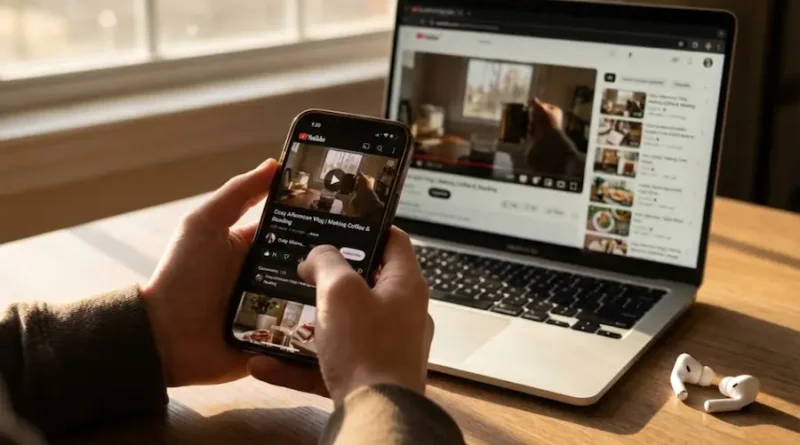
Download YouTube Videos Without Software
You know that feeling when you find the perfect YouTube video, but you’re about to go somewhere with no internet? Super annoying, right? Maybe you’re going on a long flight, heading to a place with spotty WiFi, or you just want to save your favorite cooking tutorial before it disappears forever.
Good news: You don’t need to download any heavy software or complicated apps. I’m going to show you the easiest ways to grab those videos using just your web browser. Even if you’re not a tech person, you can do this in under 2 minutes.
Why Would You Want to Download YouTube Videos?
Before we jump into the how-to part, let’s talk about why people download videos in the first place:
Watch Anywhere, Anytime: Imagine you’re on a road trip with your family. The kids are getting bored in the backseat. If you’ve downloaded their favorite cartoon episodes, you’re basically a superhero parent. No internet needed!
Save Your Favorites Forever: Sometimes creators delete their old videos. Or maybe you found a great guitar lesson that helped you learn a new song. Downloading means you’ll always have it, even if it gets removed from YouTube later.
No More Annoying Ads: We all know how frustrating it is when you’re watching a 10-minute video and three ads pop up. Downloaded videos? Zero ads. Just pure, uninterrupted viewing.
Study Without Distractions: Students love this one. If you’re learning something from a YouTube tutorial, having it downloaded means you can pause, rewind, and watch it as many times as you need without worrying about your internet connection dropping.
Hold On: Is This Legal?
Okay, real talk here. YouTube’s rules say you shouldn’t download videos unless you’re using their official features (like YouTube Premium) or the creator gives you permission. Most videos on YouTube are protected by copyright laws.
What you should know:
You can download videos for your personal use (like watching on a plane), but you can’t sell them, repost them as your own, or use them to make money. Think of it like borrowing a book from the library. You can read it at home, but you can’t make copies and sell them to your friends.
If you want to learn more about what’s allowed and what’s not, YouTube has a helpful page explaining their rules on this topic. For school projects, presentations, or anything public, always ask the creator first or give them proper credit. It’s just the right thing to do.
Now that we’ve covered that important stuff, let’s get to the fun part!
The Easiest Way: Online Download Websites
This is my favorite method because it’s super simple. You don’t install anything, you don’t sign up for accounts, and it works on any computer or phone with an internet browser.
How it works in three easy steps:
Step 1: Copy Your Video Link
Go to YouTube and find the video you want. See that address at the top of your browser? That long web address starting with “youtube.com”? Click on it once and copy it. You can right-click and choose “Copy” or just press Ctrl+C (or Command+C on Mac).
Helpful tip: You can also click the “Share” button under the video and copy the shorter link. Both work perfectly!
Step 2: Pick a Download Website
There are tons of free websites that let you download YouTube videos. The best ones that work in 2025:
Y2Mate is probably the most popular choice. Just paste your link, choose if you want the video file or just the audio, and click download. Easy peasy.
SaveFrom works almost the same way. What I like about this one is that it shows you different quality options right away. Want HD? They’ve got it. Need a smaller file to save space? They’ve got that too.
9xBuddy is another solid option. It’s super fast and handles different video formats really well.
Step 3: Download and Enjoy!
After you paste your link and click the download button, the website will process your video (usually takes just a few seconds). Then you’ll see a download button. Click it, and boom! The video saves to your computer or phone.
Where does it save? Usually in your “Downloads” folder. On your phone, it might ask you where you want to save it.
The Sneaky Trick: Change the URL
This one is so simple it almost feels like a hack. All you do is add two letters to the YouTube link, and it takes you straight to a download page.
The magic trick: When you’re watching a YouTube video, look at the URL. It says “youtube.com/watch?v=” followed by a bunch of letters and numbers, right?
Just add “ss” before the word “youtube” so it looks like this: “ssyoutube.com/watch?v=”
Press Enter, and you’ll be taken to a page where you can download the video. No extra steps, no copying and pasting into another website. Just add two letters and go!
Method for Regular Downloaders: Browser Extensions
If you download YouTube videos all the time, you might want a browser extension. These are little tools you add to your web browser once, and then you can download videos with just one click.
For Firefox Users:
Video DownloadHelper is perfect for you. Go to the Firefox Add-ons store, search for “Video DownloadHelper,” and add it to your browser. After that, whenever you’re watching a YouTube video, you’ll see a small icon in your browser. Click it, choose your quality, and download!
Important note for Chrome users: Google doesn’t allow extensions that download YouTube videos in their Chrome Web Store. If you use Chrome, stick with the online websites I mentioned earlier. They work just as well!
Things to Remember for Smooth Downloads
Check Your Internet Speed: Downloading a long HD video needs good internet. If your connection is slow, the download might take forever. Maybe choose a lower quality option or wait until you’re on better WiFi.
Have Enough Storage Space: HD videos can be big. A 10-minute video in 1080p quality might take up 200-300 MB of space. Before downloading a bunch of videos, make sure you have room on your device.
Be Careful with Ads: Some download websites have lots of ads and pop-ups. Don’t click on everything that looks like a download button! The real download button is usually the simplest-looking one. If a website is opening tons of new windows, close them and try a different download site from my list above.
Start with Shorter Videos: If you’re trying this for the first time, start with a short video (like 2-3 minutes). This way, you can see how it works without waiting too long. Once you get the hang of it, downloading longer videos will be easy.
What If You Just Want the Audio?
Sometimes you don’t need the video part at all. Maybe you found an awesome song, a podcast, or a meditation guide and you just want to listen to it.
Good news: Most of these download websites let you save just the audio file (as MP3). When you paste your YouTube link, look for an option that says “MP3” or “Audio Only.” Pick that, and you’ll get just the sound without the video. Perfect for listening while you exercise or during your commute!
My Personal Recommendations
After trying all these methods, what I suggest:
If you download videos once in a while: Use Y2Mate or SaveFrom. They’re reliable, easy to use, and you don’t need to remember anything special.
If you’re in a hurry: The “ss” trick is the fastest. Just add those two letters to the URL and go.
If you download videos regularly: Get the Video DownloadHelper extension for Firefox. It saves so much time when you’re downloading multiple videos.
Troubleshooting Tips
Download won’t start? Try a different download website. Sometimes one site is busy or having issues, but another will work fine.
Video quality looks bad? Make sure you selected HD or 1080p before downloading. The default option is usually lower quality to save space.
File won’t play on your device? Most download websites give you MP4 files, which work on pretty much everything. If you’re having trouble, try downloading as MP4 format specifically.
Final Thoughts
Downloading YouTube videos without software is super easy once you know how. Whether you’re saving educational content, entertainment for a long trip, or your favorite music videos, these methods work great.
Remember to be respectful of the creators who made these videos. Use downloads for your personal enjoyment, and if you want to share or repost something, always give credit or ask permission first.
The internet is an amazing place full of helpful, entertaining, and inspiring content. Being able to save some of that content for offline viewing just makes life a little bit easier. Happy downloading!
FAQs
Can I download videos on my phone?
Yes! All these methods work on phones too. Just use your mobile browser to visit the download websites and follow the same steps.
Do these methods work for private videos?
No, you can only download public videos that you have access to watch normally.
Is YouTube Premium better for downloading?
If you watch YouTube a lot, Premium is good. You get ad-free viewing, background play, and official downloads. But if you just need to download a few videos occasionally, the free methods I showed you work perfectly fine.
Can I download entire playlists?
Most online websites download one video at a time. For playlists, you’d need to download each video separately using these methods.
Will I get in trouble for downloading videos?
As long as you’re downloading for personal use and not redistributing or selling the content, you’re generally okay. Just be respectful and use common sense!