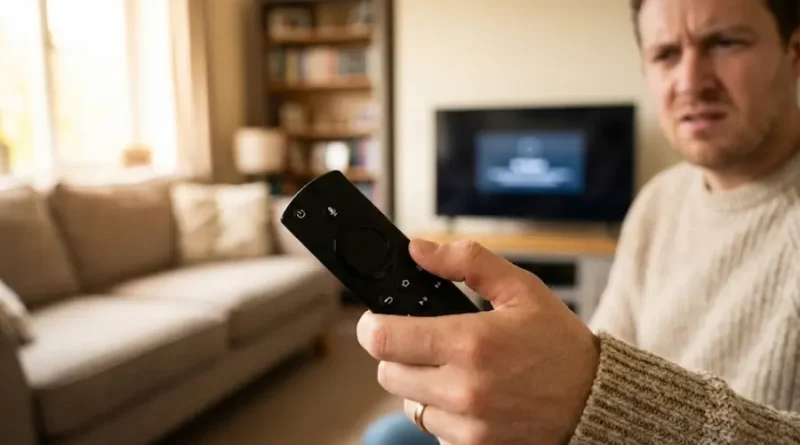
Fire Stick Remote Not Working? Try These 7 Fixes Before Buying a New One
Is your Fire Stick remote giving you trouble? Don’t worry! You’re not alone. Thousands of Fire Stick users face this problem every day. The good news? Most remote issues can be fixed in just 5 minutes without calling tech support.
In this article, I’ll show you exactly how to fix your Fire Stick remote using simple steps that anyone can follow. No fancy tech skills needed!
Why Your Fire Stick Remote Stops Working
Before we jump into solutions, let’s understand what usually goes wrong.
Common reasons include:
- Dead or weak batteries
- Remote lost connection with Fire Stick
- Something blocking the signal
- Remote buttons are stuck or damaged
- Software glitches in your Fire Stick
Now let’s fix each problem step by step.
Fix #1: Check Your Batteries First (Takes 30 Seconds)
This sounds too simple, but dead batteries are the number one reason remotes stop working.
What to do:
- Open the back cover of your remote
- Take out both batteries
- Check if batteries look old or leaked
- Put in fresh new batteries (AAA size)
- Make sure the + and – sides match correctly
- Close the back cover
Helpful hint: Always keep extra batteries at home. It saves you a lot of frustration!
Try using your remote now. If it works, great! If not, move to the next fix.
Fix #2: Restart Your Fire Stick (The Magic Reset)
Sometimes your Fire Stick just needs a fresh start. This fixes most connection problems.
Easy restart method:
- Unplug your Fire Stick from the power source
- Wait for 60 seconds (use your phone timer)
- Plug it back in
- Wait for the Fire Stick to fully boot up
- Try your remote again
Why this works: Restarting clears temporary glitches and refreshes the connection between your remote and Fire Stick.
Fix #3: Re-Pair Your Remote With Fire Stick
If your remote lost connection, you need to pair it again. Don’t worry, it’s super easy!
For Standard Fire Stick Remote (without volume buttons):
- Hold the Home button for 10 seconds
- Wait for a message on your TV screen
- The message will say “New remote detected”
- Your remote should now work
For Alexa Voice Remote (with volume buttons):
- Stand close to your Fire Stick (within 3 feet)
- Press and hold these three buttons together: Home + Back + Left side of the circle button
- Hold for 10 seconds
- Release and wait 60 seconds
- Watch for a blue light on your remote
- Your TV will show a pairing message
Important: Stay patient during pairing. Sometimes it takes a minute or two.
Fix #4: Check for Signal Blockers
Your Fire Stick remote uses Bluetooth to connect. Some things can block this signal.
Look for these common blockers:
- Is something sitting right in front of your Fire Stick?
- Is your Fire Stick hidden behind your TV?
- Are there other wireless devices very close by?
- Is your remote too far away (more than 30 feet)?
Simple solution:
- Move items away from your Fire Stick
- Bring your remote closer
- Try using your remote from different spots in the room
Fix #5: Clean Your Remote Buttons
Dirty or sticky buttons can stop your remote from working properly.
Simple cleaning steps:
- Take out the batteries first (safety first!)
- Use a cotton swab dipped in rubbing alcohol
- Gently clean around each button
- Let it dry for 5 minutes
- Put batteries back in
- Test your remote
Warning: Don’t pour liquid directly on your remote. Use just a little bit on the cotton swab.
Fix #6: Use the Fire TV App as Backup (Smart Solution)
While fixing your remote, you can still use your Fire Stick! Download the free Fire TV app on your smartphone.
How to set it up:
- Download “Amazon Fire TV” app from App Store or Google Play
- Make sure your phone and Fire Stick are on the same WiFi
- Open the app and select your Fire Stick
- Your phone becomes a remote!
This helps because:
- You can control Fire Stick while troubleshooting
- You can update Fire Stick software if needed
- It’s a great backup option
Fix #7: Factory Reset Your Remote (Last Resort)
If nothing else worked, try resetting your remote to factory settings.
Reset steps:
- Remove the batteries from your remote
- Unplug your Fire Stick from power
- Wait for 60 seconds
- Plug Fire Stick back in
- Wait until you see the home screen
- Put batteries back in remote
- Hold Home button for 40 seconds
- Release and wait 60 seconds
- Follow pairing steps from Fix #3
This gives your remote a completely fresh start.
When to Buy a New Remote
Sometimes remotes are just too old or damaged to fix. Consider buying a new remote if:
- Your remote is physically broken (cracked, water damaged)
- Buttons don’t press properly anymore
- You’ve tried all fixes and nothing works
- Your remote is more than 3 years old
Good news: Amazon sells replacement remotes for $30-40. You can also find compatible remotes on Amazon for less money.
How to Prevent Remote Problems
Now that your remote is working, keep it that way!
Follow these simple tips:
- Change batteries every 6 months (even if they seem fine)
- Keep remote away from liquids (no drinks near your couch!)
- Don’t drop your remote (get a silicone case for protection)
- Update your Fire Stick regularly (keeps everything working smoothly)
- Clean your remote monthly (prevents button issues)
Troubleshooting Checklist
Before calling support, try this checklist:
- ☐ Replaced batteries with fresh ones
- ☐ Restarted Fire Stick completely
- ☐ Re-paired remote following correct steps
- ☐ Checked for signal blockers
- ☐ Cleaned remote buttons
- ☐ Tried factory reset
If you checked all boxes and remote still doesn’t work, it’s time to contact Amazon support or buy a replacement.
Common Questions About Fire Stick Remotes
How long do Fire Stick remote batteries last?
Usually 3-6 months with normal use. Heavy users might need to change them every 2-3 months.
Can I use any TV remote with Fire Stick?
Some modern TV remotes work with Fire Stick through HDMI-CEC. But a dedicated Fire Stick remote gives you the best experience.
Why does my remote work sometimes but not always?
This usually means weak batteries or signal interference. Try replacing batteries first.
Is there a button to reset my remote?
No physical reset button exists. You reset it using the button combination we shared in Fix #7.
My remote light blinks but buttons don’t work. What’s wrong?
This means your remote has power but isn’t paired correctly. Follow the pairing steps in Fix #3.
Final Thoughts
A non-working Fire Stick remote is frustrating, but now you know exactly how to fix it! Start with the simple solutions (batteries and restart) and work your way down the list.
Remember these key points:
- Most problems are fixed by changing batteries or restarting
- Always try pairing your remote again before giving up
- The Fire TV app is a great backup solution
- Prevention is easier than fixing
Did this article help you fix your remote? Share it with friends who use Fire Stick. They’ll thank you when their remote stops working!
Now go enjoy your favorite shows without any interruptions!
Visit the rest of our site for more tech updates.