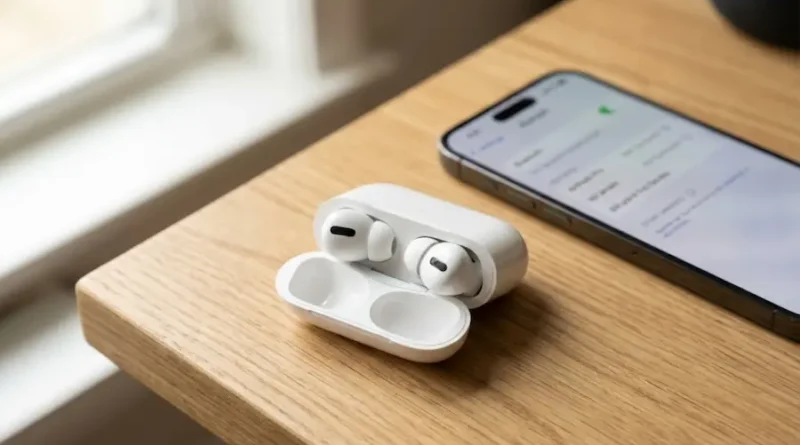
How to Reset AirPods When They Won’t Connect
Your AirPods won’t connect? Charging issues? One side not working? Don’t worry, resetting them takes just 2 minutes and fixes 95% of common problems.
Why You Need to Reset Your AirPods
Before we get into the steps, let’s understand when you should reset your AirPods:
Common Problems That Need a Reset:
- Your AirPods keep disconnecting from your phone
- One AirPod is not working or sounds quieter
- They won’t charge properly
- Connection problems with your iPhone or Android
- You want to give them to someone else
- Sound quality has gotten worse
- They won’t pair with new devices
Think of resetting like restarting your phone when it acts weird. It clears all the old data and gives your AirPods a fresh start.
Before You Start: Quick Checklist
Make sure you have these ready:
✓ Your AirPods and charging case ✓ At least 10% battery in the case ✓ Your iPhone, iPad, or any device nearby ✓ 2 minutes of free time
Pro Tip: Charge your case for 5-10 minutes if the battery is very low. This prevents problems during the reset.
How to Reset Different AirPods Models
The reset process is slightly different for each model. Find your model below and follow those specific steps.
For AirPods 1, 2, 3, AirPods Pro (1st & 2nd Gen)
This is the most common method. Follow these simple steps:
Step 1: Prepare Your AirPods
- Put both AirPods inside the charging case
- Close the lid completely
- Wait for 30 seconds (count to 30 slowly)
Step 2: Forget the Device (Important!)
- Open Settings on your iPhone or iPad
- Tap on Bluetooth
- Find your AirPods in the list
- Tap the small “i” icon next to them
- Tap “Forget This Device”
- Confirm by tapping “Forget Device” again
Step 3: Reset Your AirPods
- Open the charging case lid (keep AirPods inside)
- Look at the back of the case – find the small round button
- Press and hold this button for 15 seconds
- Watch the front light carefully
- The light will flash orange (amber), then white
- When you see white light, let go of the button
Step 4: Reconnect Your AirPods
- Keep the case open
- Bring it close to your iPhone
- A setup screen will appear on your phone
- Tap “Connect”
- Follow the simple instructions on screen
Done! Your AirPods are now reset and working like new.
For AirPods 4 (All Versions)
Apple changed the reset method for AirPods 4. What you need to do:
Step 1: Prepare
- Put both AirPods in the charging case
- Close the lid for 30 seconds
Step 2: Forget Device (same as above)
- Go to Settings > Bluetooth
- Forget your AirPods from the list
Step 3: Reset with Double-Tap
- Open the case lid
- Look at the front of the case (not the back!)
- Double-tap the front of the case when the light is on
- Wait for the light to flash white
- Double-tap again
- Wait for faster flashing
- Double-tap a third time
- The light will flash orange, then white
Step 4: Reconnect
- Keep case open near your iPhone
- Follow the setup instructions
For AirPods Max
AirPods Max are different because they don’t have a case. Instructions below:
Step 1: Forget Device
- Go to Settings > Bluetooth on your iPhone
- Forget AirPods Max from the list
Step 2: Reset the Headphones
- Find the Digital Crown (the round dial)
- Find the Noise Control button (oval button)
- Press and hold BOTH buttons together
- Keep holding for 15 seconds
- The light near the charging port will flash orange
- Then it will flash white
- Release both buttons when you see white light
Step 3: Pair Again
- Bring AirPods Max close to your iPhone
- Follow the setup instructions
What If Reset Doesn’t Work?
Sometimes the reset doesn’t fix things right away. Try these extra solutions:
Problem 1: AirPods Won’t Reset
Solution:
- Make sure the case has at least 20% battery
- Clean the charging contacts (see cleaning tips below)
- Try the reset steps again slowly
- Make sure you’re holding the button for the full 15 seconds
Problem 2: One AirPod Still Not Working
Solution:
- Check if it’s charging properly in the case
- Make sure it’s sitting correctly
- Clean the stem of the AirPod
- Try resetting one more time
- If still not working, contact Apple Support
Problem 3: Case Won’t Charge
Solution:
- Try a different charging cable
- Clean the charging port with a soft brush
- Make sure the cable is plugged in properly
- Try wireless charging if your case supports it
Problem 4: “Not Your AirPods” Message
If you see this message after reset, it means the previous owner didn’t remove them from their Apple ID.
Solution:
- Ask the previous owner to remove them from iCloud
- They should go to iCloud.com > Find My > Remove Device
- Or contact Apple Support with proof of purchase
How to Clean Your AirPods for Better Connection
Dirty contacts are a common reason for charging and connection problems. Ways to clean them safely:
What You Need:
- Soft, dry cloth
- Cotton swabs (Q-tips)
- Small soft brush (toothbrush works)
Cleaning Steps:
- Wipe the AirPods stem with a dry cloth
- Focus on the silver metal parts
- Use a cotton swab for stubborn dirt
- Clean inside the charging case holes
- Let things dry for 5 minutes
- Never use water directly on AirPods
Important: Don’t use wet wipes or spray liquid directly. Just slightly damp is okay.
Quick Troubleshooting Tips
AirPods keep disconnecting?
- Reset them using the steps above
- Update your iPhone to the latest iOS
- Turn Bluetooth off and on
- Move away from other Bluetooth devices
Battery draining too fast?
- Check battery health in Settings
- Turn off features you don’t use
- Reset your AirPods
- Reduce volume (loud volume uses more battery)
One side louder than the other?
- Clean both AirPods
- Check audio balance in Settings > Accessibility
- Reset your AirPods
- Test with different audio sources
Won’t charge in case?
- Clean charging contacts
- Make sure they’re seated properly
- Charge the case first
- Try the reset process
Helpful Tips After Reset
After resetting, your AirPods are like new. Some useful tips:
1. Rename Your AirPods
- Go to Settings > Bluetooth
- Tap the “i” next to your AirPods
- Tap “Name” and type a new name
- This helps if you have multiple AirPods
2. Set Up Controls
- Decide what double-tap or press-and-hold does
- You can control music, calls, or Siri
- Set different controls for left and right
3. Enable Find My
- This helps locate lost AirPods
- Automatically enabled when you pair
- Check in Find My app to confirm
4. Update Firmware
- Keep AirPods in case near iPhone
- Make sure iPhone is on Wi-Fi
- Updates happen automatically
- Check Settings > Bluetooth > Your AirPods for version
When to Contact Apple Support
If you’ve tried these steps and problems continue:
- Visit Apple Support website
- Book an appointment at Apple Store
- Check if warranty covers your issue
- You might need repair or replacement
Most problems are fixed with a simple reset, but sometimes hardware issues need professional help.
Common Questions People Ask
Will resetting delete my AirPods?
No, it just removes the connection to your devices. Your AirPods will still work, you just need to pair them again.
How often should I reset my AirPods?
Only when you have problems or want to connect to a new device. There’s no need to reset regularly.
Does reset affect sound quality?
No, it actually might improve it by clearing glitches. All your settings just go back to default.
Can I reset if I lost one AirPod?
Yes, but you need the case. You can reset with just one AirPod inside.
Will this work on Android phones too?
Yes! The reset works the same way. After reset, you can pair with any Bluetooth device.
Final Thoughts
Resetting your AirPods is easy and solves most common problems. The whole process takes less than 2 minutes and can save you from buying new ones.
Remember these key points:
- Always charge your case first
- Follow the steps slowly
- Clean your AirPods regularly
- Contact Apple if problems continue
Now your AirPods should work perfectly again. Enjoy your music!
Was this helpful? Share it with friends who have AirPods problems. Leave a comment below if you have questions or other tips to share!
Visit the rest of our site for more tech updates.