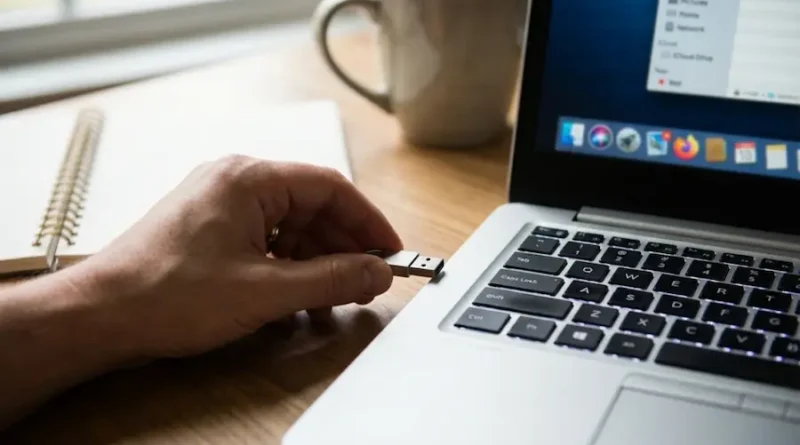
Portable Apps: Run Your Favorite Programs on Any Computer (No Install Needed)
You know that feeling when you sit down at a friend’s computer or a school library PC, and you wish you had your favorite programs right there? Maybe you need that special photo editor you love, or your password manager, or just a browser with all your bookmarks.
Well, here’s something cool: portable apps let you carry all your favorite programs in your pocket. Seriously!
Think of it like this. Instead of installing heavy software that clutters up your computer, you can run programs straight from a USB stick. No installation needed. No mess left behind. Just plug in, click, and go.
Let me show you why this matters and how you can start using portable apps today.
What Are Portable Apps Anyway?
Okay, let’s keep this super simple.
A normal program (like Microsoft Word or Photoshop) needs to be installed on your computer. During installation, the program spreads its files all over your hard drive. It adds things to something called the “registry” (think of it as your computer’s memory book). It creates shortcuts. It does a lot of stuff behind the scenes.
A portable app is different. It’s like a self-contained box. Everything the program needs to run stays inside one folder. You can put that folder on a USB flash drive, an external hard drive, or even in your cloud storage like Google Drive or Dropbox.
When you want to use the program, you just double-click it. That’s it. No waiting for installation. No clicking “Next” a hundred times. Just instant access to your program.
Why Should You Care About Portable Apps?
Good question! Here’s why thousands of people are switching to portable apps:
1. Use Your Programs Anywhere
Imagine you’re at your friend’s house, and you need to edit a document. Instead of saying “Do you have LibreOffice installed?”, you just plug in your USB stick and boom… you’ve got your own office suite ready to go.
Students love this. If you’re working on a school project, you can use the same programs on your home computer, school computers, and even library computers. Your settings, your bookmarks, everything travels with you.
2. Keep Your Computer Clean
Every time you install a program the normal way, it leaves traces everywhere. Files get scattered around your hard drive. Your registry gets bigger and messier. Over time, this slows down your computer.
Portable apps don’t do that. They sit nicely in their own folder and don’t touch anything else. When you’re done with a portable app, just delete the folder. Gone! No leftover junk.
3. No Installation Headaches
Have you ever tried to install software on a work computer or school computer and gotten a message saying “You need administrator permission”? Annoying, right?
Portable apps don’t need installation, so they don’t need admin permission. (Though sometimes you might need permission to plug in a USB stick, depending on the computer’s security settings.)
4. Perfect for Backup
Let’s say your computer crashes tomorrow. Scary thought, I know. If you’re using installed programs, you’ll spend hours reinstalling everything and setting it up again.
But if you’re using portable apps from a USB stick or cloud folder? Just plug in and keep working. All your programs and settings are already there. It’s like having a safety net.
5. Try Before You Commit
Want to test out a new program but don’t want to install it? Many programs offer portable versions. You can try them out without cluttering your system. If you don’t like the program, just delete the folder. Easy!
The Catch: Are There Any Downsides?
I’m being honest with you here. Portable apps are awesome, but they’re not perfect for everything.
Some portable apps start up a tiny bit slower than installed versions. We’re talking maybe half a second difference. For most people, this is no big deal.
Also, portable apps can’t always do system-level stuff. For example, if a program needs to add something to your right-click menu or run automatically when your computer starts, it usually needs to be installed the traditional way.
And here’s another small thing: file associations don’t work automatically. What does that mean? Well, normally when you double-click a .jpg picture, it opens in your default photo viewer, right? With portable apps, you might need to right-click and choose “Open with” the first time.
But honestly? For most everyday programs, these tiny drawbacks are totally worth the benefits.
Where Can You Get Portable Apps?
Alright, you’re sold on the idea. Now where do you get these magical portable programs?
PortableApps.com is your best friend here. It’s the biggest and most trusted place for portable apps. They have over 500 different programs, all free and safe to use. We’re talking browsers, office suites, photo editors, games, security tools, everything you can imagine.
The site offers something called the PortableApps Platform. Think of it as a little menu that sits on your USB stick and organizes all your portable apps in one place. It even updates your apps automatically! The whole system has been downloaded over 1.2 billion times, so you know it’s legit.
Other good sources include Portapps.io for Windows-specific portable apps, and sites like TechSpot that offer portable versions of popular programs.
Just make sure you’re downloading from trusted sources. Don’t grab portable apps from random websites that look sketchy. Stick with well-known sites.
What Are the Best Portable Apps to Start With?
Let me give you some recommendations. These are programs that almost everyone finds useful:
Google Chrome Portable is a go-to choice. It’s the portable version of Chrome, and since it syncs with your Google account, all your bookmarks and extensions come with you. Perfect for browsing on any computer.
LibreOffice Portable is your free office suite. It’s got everything: word processor, spreadsheet, presentation maker. It even works with Microsoft Office files. Sure, it takes up a bit more space (around 300-400MB), but it’s totally worth it if you work with documents.
VLC Media Player Portable plays basically any video or music file you throw at it. No codec headaches. Just works.
GIMP Portable is like Photoshop’s free cousin. Great for editing photos without paying hundreds of dollars.
7-Zip Portable helps you open compressed files like .zip and .rar. Super handy.
Notepad++ Portable is a fantastic text editor for anyone who writes code or just wants something better than basic Notepad.
For password management, KeePass Portable keeps all your passwords safe in one encrypted file that travels with you.
And here’s a cool one: Ferdium Portable combines multiple messaging apps into one place. WhatsApp, Instagram DMs, Discord, Teams, you name it. All in one app. It’s a bit heavy on system resources, but super convenient.
How Do You Use Portable Apps?
It’s so simple, you’ll be surprised.
Step 1: Get a USB Flash Drive
You’ll want at least 8GB of space, though 16GB or 32GB is better if you plan to carry lots of apps. USB sticks are super cheap these days. You can also use an external hard drive if you have one.
Step 2: Download the PortableApps Platform
Go to PortableApps.com and download their platform. It’s free. Run the installer and choose your USB drive as the destination. The installer will set everything up.
Step 3: Browse and Install Apps
Once the platform is installed on your USB stick, you’ll see a menu. Click on “Apps” and browse through hundreds of available programs. Click “Install” on the ones you want. The platform downloads and installs them automatically.
Step 4: Run Your Apps
Plug your USB stick into any computer. Open the PortableApps menu. Click on any app to run it. That’s literally it!
Your apps will save their settings to the USB stick, so everything stays how you like it, no matter which computer you use.
Can You Use Portable Apps Without a USB Stick?
Absolutely! You don’t need a USB stick at all if you don’t want one.
Lots of people keep their portable apps in cloud storage folders like Dropbox, Google Drive, or OneDrive. This way, you can access your programs from any computer with internet access. Plus, your apps are automatically backed up to the cloud.
You can also just keep portable apps in a folder on your regular hard drive. Some folks do this to keep their system clean and avoid installing programs the traditional way. It works great, especially on computers with limited hard drive space.
Are Portable Apps Safe?
This is important, so let me be clear.
Portable apps from trusted sources like PortableApps.com are completely safe. The site checks all programs for malware and bundleware (those annoying extra programs that try to install alongside what you want).
In fact, portable apps can be more secure in some ways. Since they don’t install system-wide, a portable app can’t mess with important system files if something goes wrong.
But here’s the thing: always download portable apps from official, trusted sources. Don’t download random “portable” versions from sketchy file-sharing sites. Those might be infected with viruses.
And remember, if you’re carrying sensitive information on a USB stick, make sure you don’t lose it! Consider encrypting your USB drive for extra security.
Who Benefits Most from Portable Apps?
Honestly? Almost everyone! But some people find them extra useful.
Students can work on projects using the same tools whether they’re at home, school, or the library. No need to deal with different software versions on different computers.
Professionals who travel love portable apps because they can use their familiar tools on any client’s computer without installing anything.
Computer technicians carry USB sticks loaded with diagnostic and repair tools. They can fix computers without installing anything on the broken system.
People with old or slow computers use portable apps to avoid further slowing down their machines with installations.
Privacy-conscious users appreciate that portable apps don’t leave traces on public computers. When you unplug your USB stick, it’s like you were never there.
Quick Tips for Using Portable Apps Like a Pro
Let me share some things I’ve learned:
Organize your apps into categories. The PortableApps Platform does this automatically, but if you’re doing it manually, create folders like “Browsers”, “Office”, “Media”, etc.
Keep a backup of your USB stick. Seriously. USB drives can fail or get lost. Copy your portable apps folder to your computer or cloud storage once in a while.
Don’t overload your USB stick with every app you can find. Start with the essentials and add more as you need them. A cluttered menu is annoying.
Check for updates regularly. The PortableApps Platform updates automatically, which is awesome. But if you got apps from other sources, check their websites for updates every month or so.
Test on your own computer first before relying on portable apps in important situations. Make sure everything works how you expect.
What’s Coming Next for Portable Apps
Here’s something interesting: the whole tech world is moving toward portable solutions. Web apps that run in browsers are becoming more powerful. Cloud storage is everywhere. Even operating systems are getting better at letting you carry your work environment with you.
Portable apps fit perfectly into this trend. They give you flexibility and control over your software in a way that traditional installations never could.
Microsoft even experimented with a feature in Windows that would let you move installed apps between drives. It didn’t make the final cut, which just shows how complex traditional installations are. Portable apps solve this problem beautifully.
Ready to Go Portable?
Look, you don’t have to completely switch to portable apps overnight. Nobody’s saying that.
But try it out. Download the PortableApps Platform onto a USB stick. Install a few apps you use daily. Carry it with you for a week. See how it feels to have your favorite programs in your pocket.
I think you’ll be surprised at how convenient it is. No more saying “Sorry, I don’t have that program installed” when you’re away from your main computer. No more cluttering up borrowed computers with installations. Just plug in and work.
Plus, there’s something satisfying about having a clean system without dozens of programs scattered all over your hard drive. Your computer runs smoother. Backups are easier. Everything just feels more organized.
Give portable apps a try. Your USB stick is about to become your new best friend.
FAQs
Can portable apps run on Mac or Linux?
Most portable apps are designed for Windows, but some work on Mac and Linux too. PortableApps.com has started offering a platform for macOS. Linux users often don’t need portable apps as much because Linux programs are usually lighter and easier to move around anyway.
Do portable apps update themselves?
If you’re using the PortableApps Platform, yes! It checks for updates and installs them automatically. Apps downloaded from other sources usually need manual updates.
How much space do I need?
It depends on which apps you want. A basic setup with a browser, office suite, and a few utilities might need 1-2GB. A full collection of power tools could use 10-20GB or more. Start small and expand as needed.
Can I run portable apps from my phone?
Not directly, no. Portable apps are designed for desktop operating systems. But you can carry them in your cloud storage and access them from any computer.
Will antivirus programs flag portable apps?
Occasionally, yes. Some antivirus programs get suspicious of portable apps because they don’t install traditionally. If you downloaded from a trusted source, you can usually add an exception. But always scan downloads yourself to be safe.
What happens if I pull out my USB stick while a program is running?
Don’t do that! Always close your portable apps before unplugging. Otherwise, you might lose unsaved work or corrupt some settings. It’s like unplugging your phone while it’s updating, not a great idea.
Final Thoughts
Portable apps aren’t just a neat trick for tech nerds. They’re a helpful solution for anyone who uses multiple computers or wants more control over their software.
The best part? Getting started costs nothing. Free platform, free apps, just a USB stick you probably already have lying around.
So what are you waiting for? Go grab that flash drive from your drawer, head over to PortableApps.com, and start building your portable toolkit.
Your future self will thank you the next time you’re stuck on someone else’s computer wishing you had your favorite programs with you.
Trust me on this one. Once you go portable, you’ll wonder how you ever lived without it.