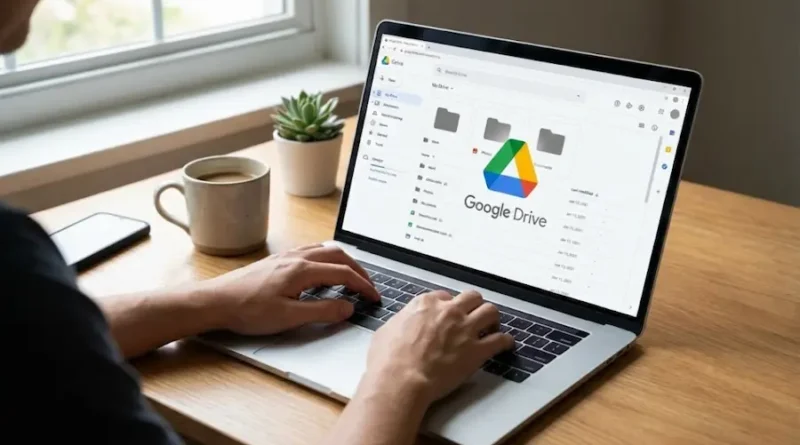
How to Use Google Drive? (Easy Guide for Beginners)
Ever feel like your computer is about to explode from too many files? Or maybe you’ve lost an important document because your laptop decided to crash at the worst possible moment? Yeah, we’ve all been there. That’s exactly where Google Drive comes in to save the day.
Think of Google Drive as your personal storage locker in the clouds. You can toss all your files up there, access them from anywhere, and share them with anyone you want. The best part? You get 15GB of free space to start with. That’s enough room for thousands of documents, hundreds of photos, or even some videos.
Let me walk you through everything you need to know about using Google Drive. I promise it’s way easier than it sounds.
What Exactly Is Google Drive?
Before we get into the details, let’s quickly cover what Google Drive actually is. It’s basically Google’s version of an online hard drive. You upload your files to their servers (that’s the “cloud” everyone keeps talking about), and boom, you can access them from your phone, tablet, laptop, or any computer with internet.
Google Drive comes packed with tools like Google Docs (think Microsoft Word), Google Sheets (like Excel), and Google Slides (PowerPoint’s cousin). All of these work together beautifully.
Getting Started: Setting Up Your Account
If you already have a Gmail account, you’ve already got Google Drive. Seriously, you’re already set up.
Don’t have a Gmail account yet? No worries. Creating one takes just a few minutes. You can sign up for a Google account and get started right away:
- Go to the signup page
- Fill in your basic info (name, birthday, where you live)
- Pick a username (this becomes your email address)
- Create a strong password
- Verify your phone number
That’s it. You now have access to Google Drive and all of Google’s other services.
Finding Your Way Around Google Drive
Once you’re logged in, head over to drive.google.com. You’ll see a few main sections that are super important to understand:
My Drive is your home base. This is where all your personal files live. Everything you create or upload starts here.
Shared with Me shows all the files other people have shared with you. Perfect for team projects or when your friend sends you those vacation photos.
Recent gives you quick access to files you’ve opened lately. Think of it as your “recently used” list.
Starred is where you can bookmark your most important files. Just like starring an email, this helps you find crucial stuff fast.
Trash holds deleted files for 30 days before they’re gone forever. So if you accidentally delete something, you’ve got a month to fish it back out.
At the top of the screen, you’ll see how much storage you’re using and how much you have left. Keep an eye on this so you don’t run out of space at a bad time.
Uploading Files: Getting Your Stuff Into Drive
Alright, let’s get your files into Google Drive. There are two main ways to do this, and both are super simple.
Method 1: The New Button
See that “New” button on the left side? Click it and you’ll see options to:
- Upload a file
- Upload a folder
- Create a new Google Doc, Sheet, or Slide
- Make a new folder to organize things
Method 2: Drag and Drop
This is my favorite way because it’s so quick. Just open a folder on your computer, grab the files you want, and drag them straight into your Google Drive window. They’ll automatically start uploading. Easy peasy.
Creating Folders: Staying Organized
Trust me on this one. Take five minutes now to set up folders, and you’ll save yourself hours of searching later. Nobody likes digging through hundreds of random files trying to find that one document.
To create a folder:
- Click the “New” button
- Select “New folder”
- Give it a clear name (like “Work Projects” or “School Stuff”)
- Click “Create”
Now you can drag files into these folders, just like you would on your computer. You can even create folders inside folders if you want to get really organized. For example, you might have a “School” folder with separate folders inside for each class.
Here’s a tip: use color coding. Right-click on any folder, choose “Change color,” and pick a color that makes sense to you. Maybe blue for work, green for personal, red for urgent stuff. Your future self will thank you.
Sharing Files: Working With Others
This is where Google Drive really shines. Sharing files is ridiculously easy, and it opens up a whole new world of collaboration.
To share a file or folder:
- Right-click on what you want to share
- Click “Share”
- Type in the email address of the person you want to share with
- Choose what they can do:
- Viewer: They can only look, not touch
- Commenter: They can view and leave comments
- Editor: They can make changes to the file
- Click “Send”
They’ll get an email with a link to access the file. Simple as that.
The “Anyone with the link” Option
Want to share something with a bunch of people without typing in everyone’s email? There’s a shortcut for that.
- Click “Share”
- Under “General access,” change it from “Restricted” to “Anyone with the link”
- Copy the link
- Send that link however you want (email, text, social media)
Anyone who clicks the link can access the file. Just be careful with this option for sensitive stuff, since literally anyone with the link can see it.
Using Google Docs, Sheets, and Slides
These are the apps that come with Google Drive, and they’re fantastic for creating documents without needing Microsoft Office.
Google Docs is for writing. Reports, letters, stories, whatever you need to type up.
Google Sheets handles spreadsheets. Budgets, schedules, data tracking, all that fun stuff.
Google Slides makes presentations. Perfect for school projects or work pitches.
The magical thing about these tools? When you create a file with them, it automatically saves to your Google Drive. No more hitting “Save” every two seconds or losing your work because you forgot to save. It’s all automatic.
Plus, multiple people can work on the same document at the same time. You’ll literally see their cursor moving around and typing. It’s wild and incredibly useful for group projects.
Working Offline: No Internet? No Problem
Most people don’t know about this. You can use Google Drive without internet. You just need to set it up first.
On your computer:
- Go to Google Drive settings (click the gear icon)
- Under “Offline,” check the box that says “Create, open and edit your recent Google Docs, Sheets, and Slides files on this device while offline”
On your phone or tablet:
- Open the Google Drive app
- Find the file you want to access offline
- Tap the three dots next to it
- Select “Make available offline”
Now when you lose internet (airplane mode, camping trip, subway ride), you can still access and edit those files. Once you’re back online, everything syncs automatically.
Finding Files: The Search Bar Is Your Friend
Google’s search is powerful. Like, really powerful. You can find files even if you barely remember anything about them.
Just type something into the search bar at the top. It’ll search file names, content inside files, and even text in images (yeah, it’s that smart).
Want to get fancy? Click the little arrow in the search bar for more options:
- Search by file type (documents, spreadsheets, images, etc.)
- Search by who owns the file
- Search by when it was last modified
- Search by specific words inside the file
This is super helpful when you’re drowning in files and need to find something fast.
Starring Important Files
See something you’ll need again soon? Star it. Seriously, this simple trick will save you so much time.
Right-click on any file or folder and select “Add to starred.” Now it shows up in your “Starred” section, giving you instant access to your most important stuff.
Use this for files you’re currently working on, important references, or anything you access regularly. It’s like creating your own personal “favorites” list.
Installing Google Drive on Your Computer
Want Google Drive to feel like a regular folder on your computer? Download the desktop app.
- Go to drive.google.com
- Click the gear icon for settings
- Select “Get Drive for desktop”
- Download and install it
Now you’ll have a Google Drive folder right on your computer. Anything you save to that folder automatically uploads to the cloud. Anything you add to your Drive online shows up in that folder. It’s smooth and easy.
You can choose to either mirror everything (download all your Drive files to your computer) or stream them (only download files when you open them). Streaming saves space on your hard drive.
Tips and Tricks You’ll Love
Let me share some shortcuts that’ll make your life easier:
Keyboard Shortcuts
- Press “/” to jump to the search bar
- Press “Shift + Z” to add a file to multiple folders
- Press “Ctrl + /” to see all available shortcuts
Convert PDFs to Editable Documents Upload a PDF to Google Drive, right-click it, and open it with Google Docs. Boom. Now you can edit it. This is amazing for filling out forms or making quick changes.
Recover Old Versions Made a mistake? Google Drive keeps old versions of your files. Right-click a file, go to “Version history,” and you can see every change ever made. You can even restore an old version if needed.
Use Comments and Mentions In Google Docs, Sheets, or Slides, highlight some text and click the comment button. You can leave notes for yourself or tag someone by typing “@” followed by their email. They’ll get notified about your comment.
Check Your Storage Running low on space? Go to drive.google.com/drive/quota to see which files are eating up the most storage. Delete the big stuff you don’t need anymore.
Common Mistakes to Avoid
Let me save you from some headaches I’ve seen people deal with:
Don’t delete shared files without thinking.
If you’re the owner and you delete a file, it’s gone for everyone who had access to it. Better to just move it to a private folder if you don’t want to share it anymore.
Always back up important files somewhere else too.
Google Drive is super reliable, but nothing is 100% safe. For critical documents, keep copies on your computer or another cloud service.
Be careful with “Anyone with the link” sharing.
This is convenient but risky for sensitive information. Someone could forward that link to anyone. Use email-specific sharing for private stuff.
Don’t ignore storage limits.
When you hit 15GB, Google Drive stops accepting new files. Keep an eye on your storage and clean up regularly.
Check your sharing permissions regularly.
Old files you shared months ago might still be accessible to people who don’t need them anymore. Do a spring cleaning of your sharing settings occasionally.
Mobile Apps: Drive on the Go
Download the Google Drive app for your phone (available for iPhone and Android). It’s basically the same as the website but made for mobile.
Cool mobile features:
- Scan documents with your phone camera
- Upload photos and videos directly
- Open files with a tap
- Share stuff quickly through your phone’s share menu
Getting More Storage
The free 15GB is shared across Google Drive, Gmail, and Google Photos. If you run out, you can upgrade to Google One:
- 100GB for $2 per month
- 200GB for $3 per month
- 2TB for $10 per month
For most people, the free 15GB is plenty if you clean up occasionally and don’t store tons of videos.
Security: Keeping Your Files Safe
Google takes security seriously, but you should too. Ways to protect your stuff:
Use a strong password. Mix uppercase, lowercase, numbers, and symbols. Don’t use the same password you use for other sites. Google offers tips for creating secure passwords if you need help coming up with something solid.
Turn on two-step verification. This means even if someone gets your password, they can’t get into your account without also having your phone. Set this up in your Google Account security settings.
Watch what you share. Double-check who you’re sharing files with. It’s easy to accidentally make something public when you meant to share it with one person.
Log out of public computers. If you use Google Drive on someone else’s computer or a library computer, always log out when you’re done.
Wrapping Up
Google Drive is one of those tools that seems complicated at first but becomes second nature pretty quickly. Start simple, upload a few files, play around with creating folders, and before you know it, you’ll wonder how you ever lived without it.
The main thing is to use it. Don’t just let it sit there. Next time you need to write something, try Google Docs instead of Microsoft Word. Need to share photos with friends? Upload them to Drive and share the folder. Working on a group project? Create a shared folder for your team.
Once you get into the habit, you’ll love the freedom of accessing your files from anywhere and never worrying about losing important documents again.
Now go ahead and give it a try. Your organized, cloud-based future is waiting.