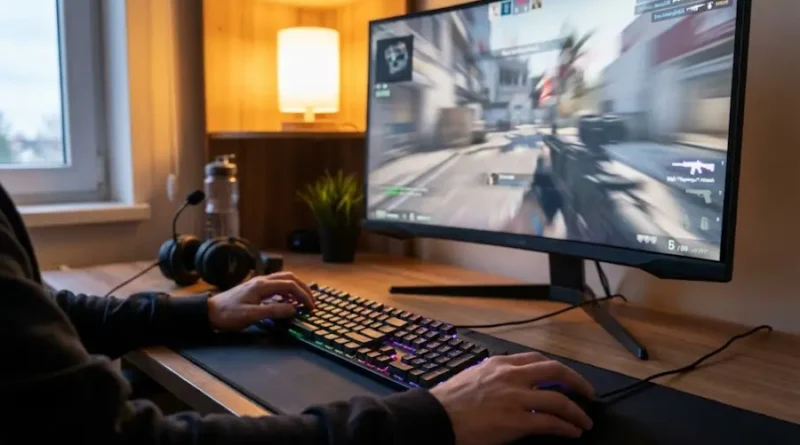
How to Reduce Input Lag: 12 Proven Ways to Fix It Fast
Have you ever pressed a button in a game, but your character didn’t move right away? That annoying delay is called input lag, and it can ruin your gaming experience. Whether you’re playing fast-paced shooters or fighting games, even a tiny delay can make you lose.
The good news? You can fix it! In this guide, I’ll show you exactly how to reduce input lag and make your games feel instant and smooth.
What Is Input Lag and Why Does It Matter?
Input lag is the time between when you press a button and when you see the action happen on your screen. Think of it like this: you click your mouse, but your character shoots half a second later. That’s input lag at work.
Most gamers experience between 20 to 50 milliseconds of input lag. That might sound small, but in competitive gaming, it’s huge! A delay of just 30ms can be the difference between winning and losing a match.
Input lag affects three main areas:
- Your mouse and keyboard
- Your computer’s processing power
- Your monitor or TV screen
When all three work slowly, the lag adds up and makes gaming feel sluggish and frustrating.
Quick Check: How Bad Is Your Input Lag?
Before fixing anything, you need to know where you stand. Play your favorite game and pay attention to how it feels. Does your character respond instantly when you press a key? Or is there a noticeable delay? If you feel even a slight lag, it’s time to make some changes.
For a more exact measurement, you can use free online tools like the Basro input lag tester. It won’t give you perfect numbers, but it’ll show you if your setup has serious problems.
Turn On Game Mode Right Now
This is the easiest and fastest fix you can do today.
Most modern TVs and monitors come with something called “Game Mode.” This special setting turns off fancy image effects that look good in movies but slow down gaming. Features like motion smoothing and noise reduction add extra milliseconds of delay.
What to do:
For Windows users, press the Windows button, go to Settings, then Gaming, and turn on Game Mode. This tells your computer to focus on your game instead of other programs running in the background.
For your TV or monitor, look in the picture settings menu. You should find an option called “Game Mode” or “Low Latency Mode.” Turn it on, and you’ll instantly feel the difference.
Game Mode can cut your display lag by 10 to 30 milliseconds. That’s a huge improvement!
Disable V-Sync to Remove Hidden Lag
V-Sync is a setting that makes your game look smoother by removing screen tearing. But there’s a problem: it also adds about two extra frames of lag to every action you take.
In simple terms, V-Sync forces your game to wait for your monitor before showing new images. This waiting creates delay.
What should you do?
Go into your game’s video settings and turn V-Sync off completely. Yes, you might see some screen tearing (when the image looks split), but your inputs will feel way faster.
If screen tearing really bothers you, try newer options like NVIDIA Reflex, AMD Anti-Lag, or Adaptive Sync. These technologies give you smooth visuals without the terrible lag that old V-Sync creates.
Get a High Refresh Rate Monitor
Your monitor’s refresh rate is how many times per second it updates the image. Most old monitors refresh at 60Hz (60 times per second). Gaming monitors go up to 144Hz, 240Hz, or even higher.
Why does this matter? A higher refresh rate means your actions appear on screen faster. With a 60Hz monitor, each frame stays on screen for about 17 milliseconds. With a 144Hz monitor, that drops to just 7 milliseconds.
The difference is night and day. Moving from 60Hz to 144Hz feels like getting a completely new gaming setup.
What if you can’t afford a new monitor?
Make sure your current monitor is running at its maximum refresh rate. Sometimes Windows automatically sets it to 60Hz even if your monitor supports more. Check your display settings and change it to the highest option available.
Use Wired Connections Always
Wireless mice, keyboards, and controllers are convenient, but they add lag. Even the best wireless gaming gear has small delays that can hurt your performance.
A wired connection offers less than 1 millisecond of lag. That’s basically instant. Wireless devices can have anywhere from 2 to 20 milliseconds of delay, and sometimes they have connection problems that make it even worse.
The fix is simple: use cables.
Connect your mouse, keyboard, and controller directly to your computer with a USB cable. If you have a wireless mouse collecting dust, switch to a wired one and feel how much snappier your aim becomes.
For your monitor or TV, always use an HDMI cable. Never try to stream games wirelessly to your screen. That adds massive amounts of lag.
Increase Your Mouse Polling Rate
Your mouse’s polling rate is how often it tells your computer where it’s moving. Most mice come set at 125Hz, which means they report their position 125 times per second.
Gaming mice can go up to 1000Hz or even higher. At 1000Hz, your mouse updates every single millisecond instead of every 8 milliseconds. This makes your cursor and aim feel incredibly responsive.
How to change it:
Most gaming mice have software you can download from the company’s website. Inside that software, look for a “polling rate” setting and crank it up to the maximum (usually 1000Hz).
If your mouse doesn’t have adjustable polling rate, it might be time to upgrade to a proper gaming mouse. They don’t have to be expensive, and the difference is huge.
Close Background Programs
Your computer can only do so many things at once. When you have Chrome with 50 tabs, Discord, Spotify, and streaming software all running while gaming, your CPU gets overwhelmed.
This causes micro-stutters and input delays because your computer is too busy juggling everything.
Before gaming, close:
- Web browsers (especially Chrome)
- Streaming software (unless you’re actively streaming)
- Chat apps like Discord (or at least close the overlay)
- Any programs you’re not using
Press Ctrl+Shift+Esc to open Task Manager and see what’s eating up your CPU. Close the heavy stuff before you start playing.
This simple step can reduce input lag by 5 to 15 milliseconds.
Update Your Graphics Drivers
Old graphics drivers can cause all sorts of lag problems. Graphics card companies like NVIDIA and AMD constantly release new drivers that improve game performance and reduce latency.
How to update:
For NVIDIA cards, download GeForce Experience from their website. It will automatically update your drivers for you.
For AMD cards, download Radeon Software from AMD’s website. It works the same way.
Update your drivers once a month to stay current. New drivers often include special optimizations for popular games that can cut lag significantly.
Adjust Your Graphics Settings for Speed
Pretty graphics are nice, but they slow down your game. The more effects your graphics card has to process, the longer it takes to show each frame on your screen.
Turn these settings down or off:
- Shadows (set to low or medium)
- Anti-aliasing (turn off or use FXAA)
- Motion blur (always turn this off)
- Ambient occlusion (turn off)
- Ray tracing (turn off unless you have a very powerful GPU)
Your goal is to make your computer able to create lots of frames per second (FPS). Higher FPS means lower lag.
If your computer can run the game at 120+ FPS, you’ll have much less lag than if it’s struggling at 60 FPS.
Lock Your Frame Rate Smartly
This one sounds backwards, but sometimes locking your frame rate actually reduces lag.
If your computer can’t consistently hit 144 FPS, the frame rate will jump around (144, 110, 130, 95). These jumps create stuttering that feels like lag.
Instead, lock your frame rate to a number you can hit 100% of the time. If you can always get 120 FPS, lock it there. Consistent frames feel smoother than jumping frames.
You can usually set this in your game’s video settings under “Frame Rate Limit” or “FPS Cap.”
Disable Fullscreen Optimizations (Windows)
Windows has a feature that’s supposed to make games run better, but it often does the opposite. It’s called Fullscreen Optimizations, and it adds an extra layer of processing between your game and your screen.
How to disable it:
Find your game’s .exe file (usually in Program Files). Right-click on it, choose Properties, then go to the Compatibility tab. Check the box that says “Disable fullscreen optimizations.”
This removes Windows’ interference and lets your game talk directly to your graphics card. Many gamers report feeling an immediate improvement after doing this.
Check Your Power Settings
If your computer is set to “Power Saver” mode, it’s intentionally slowing things down to save electricity. This includes your USB ports, which can add lag to your mouse and keyboard.
Set it to High Performance:
Go to Control Panel, then Power Options, and select “High Performance.” This tells your computer to prioritize speed over battery life.
You should also disable USB power saving. Go to Device Manager, find your USB Root Hubs, right-click each one, go to Properties, then Power Management, and uncheck “Allow the computer to turn off this device to save power.”
These tweaks ensure your peripherals stay responsive at all times.
Consider Your Internet Connection (For Online Games)
While input lag is mostly about hardware, your internet matters for online games. Network lag and input lag can combine to create a terrible experience.
Quick internet fixes:
- Use a wired Ethernet connection instead of WiFi
- Close programs using your internet (downloads, streaming)
- Play on servers closest to your location
- Reset your router if you’re having connection problems
Good internet won’t fix input lag from your hardware, but it prevents another type of lag from adding to your problems.
When Should You Upgrade Hardware?
Sometimes no amount of tweaking can overcome old, slow hardware. If you’ve tried everything in this guide and still have bad lag, it might be time to upgrade.
Upgrade priority order:
- Monitor (get 144Hz or higher)
- Mouse (get a gaming mouse with high polling rate)
- Graphics card (if you can’t hit 100+ FPS)
- CPU (if it’s very old and bottlenecking your games)
You don’t need the most expensive gear. A mid-range 144Hz monitor and a decent gaming mouse will give you 90% of the benefit at a fraction of the cost.
Test Everything After Each Change
Make one change at a time and test it.
If you change ten things at once, you won’t know which one actually helped. Do one fix, play a few matches, and see if you feel a difference.
Keep a mental note of what works. Everyone’s setup is different, and some fixes will help you more than others.
The Bottom Line
Input lag is frustrating, but you have total control over it. By following this guide, you can cut your lag in half or more. That might not sound like much, but in gaming, every millisecond counts.
Start with the simple fixes: enable Game Mode, disable V-Sync, close background programs, and use wired connections. These take five minutes and will give you instant results.
Then move on to the bigger improvements: upgrade your monitor’s refresh rate, increase your mouse polling rate, and adjust your graphics settings.
Don’t let input lag hold you back. Make these changes today, and you’ll feel like you’re playing on a completely different setup. Your reaction time is fast enough. Now your computer will be too.
Ready to win more matches? Fix your input lag now and watch your performance improve immediately!
Visit the rest of our site for more tech updates.