How to Install Games on Laptop (Easy Steps for Windows PC)
Want to play cool games on your laptop but don’t know where to start? You’re in the right place! Installing games isn’t hard at all. In fact, it’s way easier now than it was a few years ago. No more buying CDs from stores or waiting in long lines. Today, you can download thousands of games right from your laptop in minutes.
This article will show you how to install games on your laptop, step by step. Whether you’re brand new to PC gaming or just need a quick refresher, I’ve got you covered.
Why Gaming on Laptops is Better Than Ever
Here’s the thing: laptop gaming used to be complicated. You needed physical discs, special drives, and tons of patience. But in 2026, everything changed for the better.
Now you can:
- Download games instantly from the internet
- Get free games every week from some platforms
- Play on almost any laptop (even older ones with cloud gaming)
- Store hundreds of games without needing any discs
The best part? You don’t need to be a tech expert. If you can browse the internet, you can install games.
What You Need Before Installing Games
Before we jump into downloading games, let’s make sure your laptop is ready. Don’t worry, this is super simple.
Check Your Laptop Storage
Games need space on your laptop. Some small games only need 2GB, but big games like Call of Duty can need 100GB or more. Here’s how to check your space:
- Open “This PC” or “My Computer” on Windows
- Look at your C: drive (or main drive)
- Make sure you have at least 50GB free for gaming
If your laptop is running out of space, you might need to delete some old files or videos you don’t need anymore.
Check Your Internet Connection
You’ll need internet to download games. The faster your internet, the quicker you can start playing. A game that’s 50GB might take:
- 1 hour with fast internet (100 Mbps)
- 4-5 hours with medium internet (25 Mbps)
- 10+ hours with slow internet (10 Mbps)
Know Your Laptop Specs
Different games need different laptop power. Some games run on any laptop, while others need stronger hardware. Don’t stress about this too much right now. We’ll talk about checking game requirements later.
Best Platforms to Download Games in 2026
Think of gaming platforms like Netflix, but for games. You sign up, browse games, and download what you want. Here are the top platforms everyone uses:
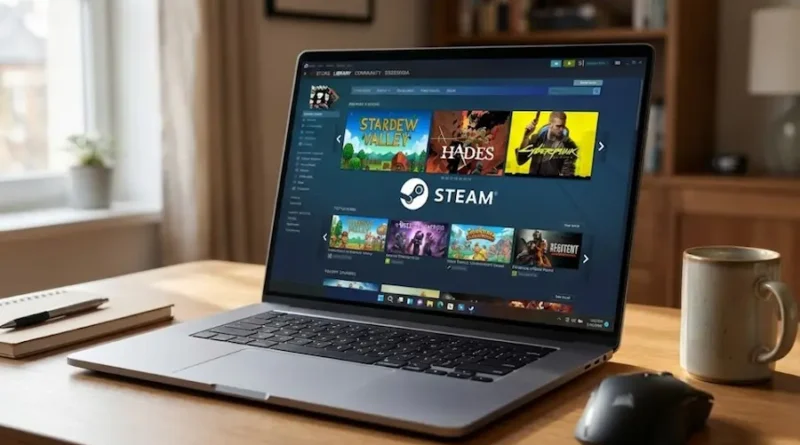
Steam (Most Popular Choice)
Steam is like the king of PC gaming. It has over 50,000 games, from tiny indie games to huge blockbusters. Steam is popular because:
- Huge game collection
- Regular sales with big discounts (sometimes 75% off!)
- Easy to use
- Works on Windows, Mac, and Linux
- Friends can see what you’re playing
- Cloud saves (your game progress stays safe)
How to get Steam:
- Go to the official Steam website
- Click “Install Steam”
- Download and run the installer
- Create a free account
- Done! Now you can browse games
Epic Games Store (Free Games Every Week!)
Epic Games is newer but super popular. Why? They give away free games every single week. Yes, free!
What makes Epic special:
- Free games every Thursday
- Some games you can only get here (exclusives)
- Clean, simple design
- Regular mega sales with extra coupons
- Made by the Fortnite creators
How to get Epic Games:
- Visit the Epic Games Store
- Click “Get Epic Games”
- Download the launcher
- Sign up for free
- Check the store every Thursday for free games
Microsoft Store (Included With Windows)
If you have Windows 10 or 11, you already have this! The Microsoft Store is right there on your laptop.
Good things about Microsoft Store:
- Already installed on Windows
- Xbox Game Pass integration
- Some exclusive Microsoft games
- Simple checkout process
- Updates happen on their own
GOG (Good Old Games)
GOG is perfect if you love older classic games or want games without annoying restrictions.
Why people love GOG:
- No DRM (you truly own the games)
- Lots of classic old games
- Games work on modern systems
- Fair prices
- Consumer-friendly policies
EA App and Ubisoft Connect
These are for specific game companies. You’ll need EA App for games like FIFA or Battlefield. You’ll need Ubisoft Connect for games like Assassin’s Creed or Far Cry.
Step-by-Step: How to Install Your First Game
Alright, let’s install a game! I’ll use Steam as an example because it’s the most popular, but other platforms work very similarly.
Step 1: Download and Install the Platform
Let’s say you want to use Steam:
- Open your web browser
- Go to store.steampowered.com
- Click the big “Install Steam” button at the top
- Save the file to your laptop
- Once downloaded, open the file (usually in your Downloads folder)
- Follow the setup wizard (just keep clicking “Next”)
- Let it install (takes 2-3 minutes)
Step 2: Create Your Account
When Steam opens for the first time:
- Click “Create New Account”
- Enter your email address
- Choose a username (this is your gamer name!)
- Create a strong password
- Check your email for a verification code
- Enter the code to verify your account
Pro tip: Use a password you’ll remember but others can’t guess. Write it down somewhere safe!
Step 3: Browse for Games
Now the fun part begins. Find a game!
- Look at the Steam homepage (it shows popular and new games)
- Use the search bar if you know what game you want
- Check out categories: Free to Play, Top Sellers, New & Trending
- Click on any game that looks interesting
Step 4: Check if Your Laptop Can Run It
Before buying or downloading, always check “System Requirements” on the game’s page. You’ll see two lists:
Minimum Requirements (the game will run, but might be slow) Recommended Requirements (the game will run smoothly)
Compare these with your laptop specs. Don’t understand the tech words? That’s okay! Here’s a simple trick:
- If your laptop is 1-2 years old: You can probably run most games on medium settings
- If your laptop is 3-5 years old: Stick to less demanding games or older titles
- If your laptop is 5+ years old: Try indie games and older classics
Step 5: Download the Game
Found a game you want? Great! Here’s how to get it:
For Free Games:
- Click “Play Game” or “Install”
- Choose where to install (usually default location is fine)
- Click “Next” or “Install”
- Wait for the download to finish
For Paid Games:
- Click “Add to Cart”
- Click “Purchase for Myself”
- Choose your payment method (credit card, PayPal, etc.)
- Complete the payment
- The game will start downloading right away
Step 6: Install and Play
Once the download finishes:
- Click “Install” if it doesn’t install on its own
- Wait for installation (usually quick, 1-5 minutes)
- Click “Play” when ready
- Enjoy your game!
First-time tips:
- Your first download might take longer as it sets up some basic files
- Close other programs while downloading for faster speeds
- Don’t turn off your laptop during installation
Common Mistakes Beginners Make (And How to Avoid Them)
Let me save you some headaches. Here are mistakes I see people make all the time:
Mistake #1: Not Checking Storage Space
You start downloading a 80GB game, and halfway through, your laptop says “Not enough space.” Frustrating!
Solution: Always check your free space before downloading. Delete old files if needed.
Mistake #2: Installing Too Many Game Platforms
Some beginners download Steam, Epic, EA App, Ubisoft Connect, and more all at once. Your laptop gets cluttered.
Solution: Start with just Steam and Epic Games. Add others only when you need a specific game.
Mistake #3: Forgetting Passwords
You create an account, play for a bit, close everything, and then can’t remember your password next time.
Solution: Write down your login info in a safe place. Or use your laptop’s password manager.
Mistake #4: Buying Games at Full Price
Games go on sale ALL THE TIME. Buying at full price means you might pay $60 for something that’s $15 next week.
Solution: Add games to your wishlist. Platforms will email you when they go on sale. Steam has huge sales in summer and winter.
Mistake #5: Not Reading System Requirements
Downloading a game your laptop can’t run wastes time and internet data.
Solution: Always check the “System Requirements” section before downloading.
Mistake #6: Installing Games on the Wrong Drive
If you have multiple drives (C:, D:, etc.), installing on a full drive causes problems.
Solution: When asked where to install, choose the drive with the most free space. Your games will still work perfectly.
How to Install Free Games (Legal and Safe)
Want to play games without spending money? There are tons of legal, free options!
Free-to-Play Games
These games are completely free forever. They make money through optional purchases (like skins or cosmetics), but you never have to buy anything.
Popular free games in 2026:
- Fortnite (battle royale)
- Valorant (shooter)
- Apex Legends (battle royale)
- League of Legends (strategy)
- Warframe (action)
- Genshin Impact (adventure)
Just search for these on Steam or Epic Games and click “Install” (no payment needed).
Weekly Free Games on Epic
Epic Games gives away 1-2 games every week, and they’re good games! Once you claim them, they’re yours forever.
How to get them:
- Log into Epic Games Store
- Check the homepage every Thursday
- Click “Get” on the free game
- It’s added to your library forever
Set a weekly reminder on your phone for this. Over a year, you could get 50-100 free games!
Free Weekends
Steam and other platforms sometimes let you play paid games for free for a weekend. If you like it, you can buy it (usually at a discount during that weekend).
Where to find free weekends:
- Check Steam’s homepage
- Look for “Free Weekend” tags
- Follow gaming news sites
Installing Games from Different Sources
Not all games come from big platforms. Sometimes you might download from other places. Here’s what to know:
Games from Official Websites
Some game developers sell directly from their websites. This is usually safe.
How to install:
- Buy the game from the official site
- Download the installer file (.exe for Windows)
- Run the installer
- Follow the setup instructions
- Play!
Safety check: Make sure you’re on the REAL official website. Check the URL carefully. Scam sites often have slightly different URLs.
Bundle Sites (Humble Bundle, Fanatical)
These sites sell game bundles at crazy low prices. Pay $10, get 8 games worth $100. They give you Steam keys or direct downloads.
How it works:
- Buy a bundle
- Get keys (codes) for each game
- Open Steam (or the required platform)
- Click “Add a Game” at the bottom
- Select “Activate a Product on Steam”
- Enter your key
- The game is now in your library
Itch.io (Indie Games)
Itch.io is a platform for independent developers. Lots of creative, unique games here. Many are free or pay-what-you-want.
Installing from Itch.io:
- Find a game you like
- Click “Download”
- Pay what you want (or $0 if free)
- Download the game file
- Extract if it’s a .zip file
- Run the .exe file
Playing Games on Older or Weaker Laptops
Don’t have a gaming laptop? No problem! You can still game. Here’s how:
Lower the Graphics Settings
Most games let you adjust graphics quality. Lower settings mean the game runs faster on your laptop.
Settings to lower:
- Resolution (try 720p instead of 1080p)
- Texture quality (medium or low)
- Shadow quality (low or off)
- Anti-aliasing (off)
- Effects (low)
The game won’t look as pretty, but it will run!
Try Older Games
Games from 3-5 years ago still look great and run smoothly on older laptops. Plus, they’re usually cheaper.
Great older games that run on anything:
- Stardew Valley
- Terraria
- Undertale
- Papers, Please
- FTL: Faster Than Light
- Portal 1 & 2
Use Cloud Gaming
This is really cool! With cloud gaming, the game runs on powerful servers in the cloud, and you just stream it like watching a video.
Cloud gaming services:
- Xbox Cloud Gaming (with Game Pass)
- GeForce Now (works with Steam and Epic games)
- Amazon Luna
You need good internet (at least 15-25 Mbps) for smooth streaming, but your laptop specs don’t matter much!
Upgrade Your RAM (If Possible)
If your laptop has 4GB of RAM, upgrading to 8GB can make a huge difference. This is often cheap and easy. Check if your laptop allows RAM upgrades.
Managing Your Game Library
Once you have several games installed, staying organized helps:
Create Desktop Shortcuts
Right-click a game in Steam and select “Create Desktop Shortcut.” Now you can launch games without opening Steam first.
Use Categories/Collections
Most platforms let you organize games into folders:
- Favorites
- Currently Playing
- Finished
- Want to Play Later
Uninstall Games You’re Done With
Finished a game and won’t play it again? Uninstall it to free up space. Don’t worry, you can always re-download it later for free.
How to uninstall:
- Right-click the game
- Click “Uninstall”
- Confirm
Your game stays in your library, just not taking up space.
Back Up Save Files
Some platforms save your progress in the cloud on their own. Others don’t. Important: if you’re uninstalling a game, make sure your save files are backed up!
Where save files usually are:
- Documents/My Games
- AppData folder
- The game’s installation folder
Copy these to a safe place (USB drive or cloud storage) before uninstalling.
Troubleshooting Common Installation Problems
Sometimes things don’t work perfectly. Here’s how to fix common issues:
“Not Enough Disk Space” Error
Fix:
- Check your storage (This PC)
- Delete old files, videos, or programs you don’t need
- Move files to an external drive
- Try installing to a different drive if you have one
Download Keeps Stopping
Fix:
- Check your internet connection
- Pause and resume the download
- Restart the platform (close and open again)
- Restart your laptop
- Try downloading at a different time (less traffic)
Game Won’t Launch
Fix:
- Verify your laptop meets minimum requirements
- Right-click the game and select “Verify Integrity of Game Files”
- Update your graphics drivers (Google your laptop model + “graphics drivers”)
- Restart your laptop
- Reinstall the game if nothing else works
“Missing DLL” or “DirectX” Errors
Fix:
- Download DirectX from Microsoft
- Install Visual C++ Redistributables (also from Microsoft)
- Restart your laptop
- Try launching the game again
Game Runs Very Slow
Fix:
- Close all other programs
- Lower the graphics settings in-game
- Make sure your laptop is plugged in (not on battery power)
- Check if Windows is updating in the background
- Clean your laptop’s vents (dust causes overheating)
Keeping Your Games Updated
Games get regular updates with bug fixes and new features. Here’s how to stay updated:
Updates That Happen on Their Own
Most platforms update games without you doing anything. Check your settings:
Steam: Settings > Downloads > Allow downloads during gameplay (optional)
Epic Games:
Settings > Auto-Update (turn on)
Manual Updates
If auto-update is off:
- Look for games with an “Update” button
- Click to update
- Wait for download
- Play the updated version
Why Updates Matter
Updates fix bugs, improve performance, add new content, and sometimes fix security issues. Always keep your games updated!
Staying Safe While Downloading Games
The internet has amazing free stuff, but also dangers. Follow these safety rules:
Only Use Trusted Platforms
Stick to these official platforms:
- Steam
- Epic Games Store
- GOG
- Microsoft Store
- EA App
- Ubisoft Connect
- Official game websites
Never Download “Cracked” or “Pirated” Games
These illegal downloads often contain viruses. They can:
- Steal your passwords
- Slow down your laptop
- Delete your files
- Install malware
Just don’t. Free legal games exist, so there’s no reason to risk it.
Check Website URLs Carefully
Scammers create fake websites that look real. Always double-check:
- Steam is store.steampowered.com (not steam-games.com)
- Epic is epicgames.com (not epic-store.com)
Use Antivirus Software
Windows has protection already (Windows Defender), but you can add extra security:
- Malwarebytes (free version is good)
- Avast
- Bitdefender
Don’t Share Your Passwords
Never tell anyone your gaming account password. Platforms will NEVER ask for your password by email.
Getting the Most Out of Your Gaming Experience
Now that you know how to install games, let’s make gaming even better:
Join Gaming Communities
Connect with other players:
- Steam forums for each game
- Reddit communities (r/gaming, game-specific subreddits)
- Discord servers
- Official game forums
Use a Controller (Optional)
Some games feel better with a controller than keyboard and mouse. Xbox and PlayStation controllers work great on PC. Just plug in via USB!
Adjust Your Laptop’s Power Settings
For better performance while gaming:
- Go to Control Panel > Power Options
- Select “High Performance” mode
- Your laptop will use more power but games run better
Get Game Pass (Optional)
Xbox Game Pass for PC gives you access to hundreds of games for about $10/month. It’s like Netflix for games. Great value if you play a lot!
Follow Sales and Deals
Best times for game sales:
- Steam Summer Sale (June)
- Steam Winter Sale (December)
- Black Friday (November)
- Epic Mega Sales (seasonal)
Save money by waiting for sales. Most games drop 50-90% off eventually!
Final Tips for New Gamers
You’re almost ready to start your gaming adventure! Here are some last pieces of advice:
Start Simple Don’t jump straight into complicated games. Try easy, fun games first:
- Portal (puzzle game that teaches you PC controls)
- Stardew Valley (relaxing farming game)
- Minecraft (creative building)
Learn the Controls Most PC games use:
- WASD keys for movement
- Mouse for looking around
- Space for jump
- Shift for sprint
- E for interact
This feels weird at first but becomes natural with practice.
Take Breaks Gaming is fun, but take breaks every hour:
- Look away from the screen
- Stretch your legs
- Rest your eyes
- Drink water
Manage Your Time Games can be addictive. Set time limits for yourself. Use your phone’s timer if needed.
Connect with Friends Gaming is more fun with friends! Many games have multiplayer modes. Don’t be shy about asking friends if they play.
Have Fun! Remember: games are for enjoyment. If you’re not having fun, try a different game. There are millions of options out there.
Wrapping Up
Installing games on your laptop in 2026 is easier than ever. No CDs, no complicated setup, just download and play. Here’s a quick recap:
- Pick a platform (Steam and Epic Games are best for beginners)
- Create an account
- Check your laptop has enough space
- Browse for games you like
- Check system requirements
- Download and install
- Play and have fun!
Start with free games to practice the process. Once you’re comfortable, look around more. The gaming scene is huge and welcoming.
Don’t stress if something doesn’t work right away. Every gamer has faced tech problems. Google any error messages you get. Gaming communities are super helpful!
Now stop reading and start gaming! Your laptop is waiting to become your new gaming paradise.
Happy gaming!
FAQs
Do I need a gaming laptop to play games?
Answer: No! While gaming laptops are better, many games run on regular laptops. Start with less demanding games.
How much storage do I need for gaming?
Answer: At least 250GB free for a decent game library. 500GB or more is better.
Can I play without internet after downloading?
Answer: Most single-player games yes. Online multiplayer games need internet while playing.
Are free-to-play games free?
Answer: Yes! You never have to pay. Optional purchases exist but aren’t required to play.
What if I don’t like a game I bought?
Answer: Steam offers refunds if you played less than 2 hours and owned it less than 14 days. Epic has similar policies.
How do I know if a game is safe to download?
Answer: Stick to official platforms like Steam, Epic, GOG, and Microsoft Store. Never use shady websites.
Can I play Xbox or PlayStation games on my laptop?
Answer: Some! Check if they’re available on PC platforms. Many console games also release on PC.
Do I need to pay monthly fees?
Answer: Not usually. You can buy games once and own them. Game Pass is optional but good value.
Now you’re ready to install games on your laptop like a pro. Time to start playing!