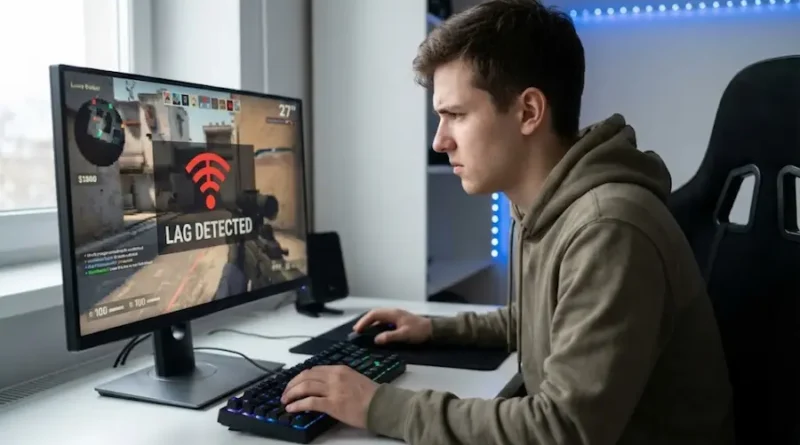
How to Fix Game Lag – Even If You’ve Tried Everything
Why Is My Game Lagging So Much?
You’re in the middle of an exciting game. Your team is about to win. Then suddenly… freeze! Your character stops moving. The screen stutters. And just like that, you lose.
Sound familiar?
Game lag is the worst enemy of every gamer. It ruins the fun and makes you lose matches you should have won.
But the good news? Most lag problems are easy to fix. You don’t need to be a computer expert. You just need to follow the right steps.
In this guide, I’ll show you exactly how to fix game lag and get back to smooth gaming.
What Is Game Lag? (Simple Explanation)
Game lag happens when your game runs slowly or freezes. It feels like everything is moving in slow motion or getting stuck.
There are two main types:
- FPS Lag – Your computer or console can’t run the game smoothly
- Network Lag – Your internet connection is too slow
Both types are annoying, but both can be fixed. Let’s start with the solutions!
10 Ways to Fix Game Lag (Tested and Working)
1. Close Background Programs
Why it works: Other programs eat up your computer’s power.
How to do it:
- Press
Ctrl + Shift + Esc(Windows) orCmd + Spacethen type “Activity Monitor” (Mac) - Look for programs using lots of memory or CPU
- Close programs you’re not using (especially Chrome, Discord, or Spotify)
Pro tip: Don’t close programs you don’t recognize – they might be important!
2. Lower Your Game Graphics Settings
Why it works: High graphics need more power. Lower settings = smoother gameplay.
How to do it:
- Go to your game’s Settings
- Find “Graphics” or “Video” options
- Turn these DOWN:
- Resolution (try 1080p instead of 4K)
- Texture Quality (Medium or Low)
- Shadows (Low or Off)
- Anti-aliasing (Off)
- Effects (Low)
Result: Your game might look less pretty, but it will run WAY smoother.
3. Update Your Graphics Drivers
Why it works: Old drivers can’t handle new games properly.
How to do it:
For NVIDIA:
- Download “GeForce Experience” app
- Click “Drivers” tab
- Click “Check for Updates”
For AMD:
- Visit AMD’s website
- Download “AMD Software”
- Install updates
For Intel:
- Go to Intel’s website
- Download “Intel Driver Update”
Time needed: 10-15 minutes
4. Use a Wired Internet Connection
Why it works: WiFi can be unstable. Ethernet cable = stable connection.
How to do it:
- Get an Ethernet cable (cheap on Amazon)
- Plug one end into your router
- Plug other end into your PC/console
- Your device will automatically use wired connection
Improvement: You might go from 50ms ping to 20ms ping!
5. Close Other Devices Using Your WiFi
Why it works: Too many devices slow down your internet for everyone.
Who’s stealing your internet:
- Someone watching Netflix
- YouTube videos playing
- Large file downloads
- Software updates running
Solution: Ask your family to pause their stuff while you game. Or game when fewer people are online.
6. Restart Your Router
Why it works: Routers get “tired” and slow down over time.
How to do it:
- Unplug your router’s power cable
- Wait 30 seconds
- Plug it back in
- Wait 2-3 minutes for it to fully restart
Do this: Once a week for best performance.
7. Change Your DNS Settings
Why it works: Faster DNS = faster connection to game servers.
How to do it (Windows):
- Go to Settings → Network & Internet
- Click “Change adapter options”
- Right-click your connection → Properties
- Select “Internet Protocol Version 4”
- Click Properties
- Select “Use the following DNS server addresses”
- Enter:
- Preferred: 8.8.8.8
- Alternate: 8.8.4.4
- Click OK
These are Google’s DNS servers – they’re free and fast!
8. Clean Your Computer or Console
Why it works: Dust blocks air flow. This makes your device overheat and slow down.
How to do it:
- Turn off your device
- Use compressed air to blow out dust
- Focus on fans and vents
- Clean once every 3 months
Warning: Never use a vacuum cleaner inside your PC!
9. Choose the Right Server Location
Why it works: Closer server = less lag.
How to do it:
- In your game settings, look for “Server” or “Region”
- Choose the server closest to where you live
- Example: If you’re in California, choose “US West” not “US East”
Sweet spot: Try to get ping under 50ms.
10. Upgrade Your Internet Plan
Why it works: Sometimes your internet is just too slow.
Minimum speeds for gaming:
- Download: 25 Mbps
- Upload: 3 Mbps
- Ping: Under 50ms
Check your speed: Visit speedtest.net
If you’re below these numbers, call your internet provider and upgrade your plan.
Fix Lag in 5 Minutes: Start Here
Don’t have time to do everything? Start here:
- [ ] Close Chrome and other programs
- [ ] Lower game graphics to Medium
- [ ] Plug in Ethernet cable (if possible)
- [ ] Restart your router
- [ ] Choose closest game server
These 5 steps fix lag for 80% of people!
For Serious Gamers: Extra Tips
Enable Game Mode (Windows 10/11)
- Press
Windows + I - Go to Gaming → Game Mode
- Turn it ON
Disable Windows Updates During Gaming
- Go to Settings → Update & Security
- Click “Pause updates for 7 days”
Use Gaming VPN (For Some Games)
- Can reduce ping to distant servers
- Try ExitLag or WTFast (paid services)
When Hardware Upgrade Is Needed
Sometimes software fixes aren’t enough. You might need better hardware if:
- Your PC is more than 5 years old
- Games lag even on lowest settings
- You have less than 8GB RAM
- Your graphics card is old (like GTX 750 or older)
Budget upgrades that help:
- Add more RAM (8GB → 16GB) – $30-50
- Get an SSD instead of HDD – $50-100
- Upgrade graphics card – $200-500
Common Lag Questions Answered
Why do I lag only in online games?
This is network lag, not FPS lag. Your internet connection is the problem. Follow steps 4-7 above.
Does game mode really help?
Yes! Game Mode gives your game priority over other programs. It can improve FPS by 5-15%.
Can viruses cause game lag?
Yes! Viruses eat up your computer’s resources. Run a virus scan with Windows Defender or Malwarebytes.
Why does my lag get worse at night?
More people use internet at night. Your connection slows down because it’s shared. Try gaming in the morning or upgrade your internet plan.
Will RGB lights cause lag?
No, but the software controlling them might! Close RGB control apps like Razer Synapse or iCUE while gaming.
Does VPN reduce lag?
Sometimes yes, sometimes no. VPNs can help if your ISP throttles gaming traffic. But they can also add lag. Test both ways.
How much ping is too much?
- 0-20ms: Perfect
- 20-50ms: Great
- 50-100ms: Okay for most games
- 100ms+: You’ll feel lag
Can I fix lag on mobile games?
Yes! Close background apps, clear cache, lower graphics, and use WiFi instead of mobile data.
What You Should Do Now
Game lag is annoying, but it’s almost always fixable. Start with the simple solutions:
- Close background programs
- Lower graphics settings
- Use wired connection
- Restart your router
These four steps alone will fix lag for most people.
If you’re still having problems after trying everything, your hardware might be too old. Consider upgrading your RAM, getting an SSD, or saving up for a better graphics card.
Now stop reading and start gaming! Your smooth, lag-free matches are waiting.
Found this helpful? Bookmark this page and share it with your gaming friends. Everyone deserves to game without lag!
Visit the rest of our site for more tech updates.