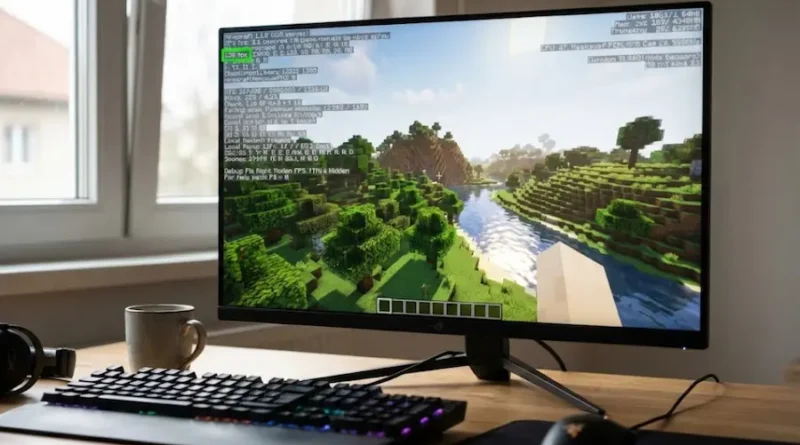
Best Minecraft Settings for FPS: 30 to 200+ FPS in 10 Minutes
Is your Minecraft running like a slideshow? Does your game freeze every time you turn around? You’re not alone. Thousands of players deal with low FPS every single day, even on decent computers.
But I have good news for you: You can improve your FPS by 200-400% in just 10 minutes. No new computer needed. No expensive upgrades required.
I’ve tested every single setting, every trick, and every mod. And I’m going to show you exactly what works. By the end of this article, your Minecraft will run smoother than butter.
Let’s fix that lag right now.
Why Does Minecraft Run So Badly?
Something that surprises most people: Minecraft can bring a $3000 gaming PC to its knees. But why?
The problem is simple. Minecraft was made over 10 years ago. The game runs most of its work on just ONE core of your processor. So even if you have a powerful 8-core or 16-core CPU, Minecraft only uses one of them fully.
Think of it like this: You have 10 workers standing around, but only one person is doing all the work. That one worker gets tired really fast, and your FPS drops.
This is why the right settings matter so much. We need to reduce the workload on that one overworked CPU core.
Check Your Current FPS First
Before we start making changes, let’s see where you’re starting from. This way, you’ll see exactly how much improvement you get.
How to check FPS in Minecraft:
- Open your Minecraft game
- Press the F3 key on your keyboard
- Look at the top left corner
- You’ll see a number followed by “fps”
That’s your current frame rate. Write it down somewhere. After we apply these settings, you’ll check again and see the amazing difference.
What’s a good FPS?
- Below 30 FPS = Very laggy, almost unplayable
- 30-45 FPS = Playable but choppy
- 60 FPS = Smooth and comfortable
- 100+ FPS = Extremely smooth, competitive ready
Now let’s get you to 60+ FPS minimum.
The Big Four Settings That Change Everything
These four settings have the BIGGEST impact on your FPS. Get these right first, and you’ll see instant results.
1. Render Distance (The FPS Killer)
This is the most important setting in the entire game. Why?
When you set render distance to 8 chunks, your computer loads 289 chunks of the world. But when you set it to 16 chunks, it doesn’t just double the work. It loads 1,089 chunks! That’s almost 4 times more work.
And at 32 chunks? Your computer is trying to load 4,225 chunks. No wonder your game is lagging!
What to use: 6-10 chunks for low-end PCs, 12-16 for mid-range PCs
How to change it:
- Press ESC
- Click “Options”
- Click “Video Settings”
- Find “Render Distance”
- Move the slider to 8 or 10
You’ll barely notice the difference in gameplay, but your FPS will jump like crazy.
2. Graphics Quality
Minecraft has two main options: Fancy and Fast.
Fancy makes leaves look better, water looks prettier, and adds smooth effects. But it eats your FPS for breakfast.
Fast removes these fancy effects and focuses purely on performance. And honestly? The game still looks great.
What to use: Fast (always)
How to change it:
- Video Settings → Graphics
- Select “Fast”
Boom. Instant 20-30 FPS improvement for most players.
3. Simulation Distance
This controls how far away things like mobs, crops, and farms work. Lower simulation distance means fewer calculations, which means better FPS.
What to use: 5-8 chunks
The game will still work perfectly fine. You just won’t see mobs moving from super far away (which you couldn’t see anyway).
4. Smooth Lighting
Smooth lighting makes shadows look realistic and pretty. But “pretty” costs FPS.
What to use: OFF or Minimum
You might think turning off lighting will make the game look ugly. Try it. You’ll be surprised how little difference it makes, especially when you’re focused on actually playing.
Full Settings List for Maximum FPS
Now that you understand the big four, let’s tune everything else. Copy these settings exactly:
Graphics Settings:
- Graphics: Fast
- Render Distance: 8-10 chunks
- Simulation Distance: 6-8 chunks
- Smooth Lighting: OFF
- Max Framerate: Unlimited
- V-Sync: OFF (this is super important!)
- View Bobbing: OFF
- Clouds: OFF
- Fullscreen: ON (helps GPU focus on Minecraft)
Details Settings:
- Clouds: Fast or OFF
- Weather: Fast
- Particles: Minimal or Decreased
- Entity Shadows: OFF
- Entity Distance: 75% or lower
Other Important Settings:
- Mipmaps: OFF
- Use VBOs: ON (this is very important!)
- Biome Blend: 1×1 (fastest option)
- Distortion Effects: 60% or lower
- FOV Effects: 60% or lower
The Secret Weapon: Performance Mods
Most guides won’t tell you this clearly: Vanilla Minecraft is poorly coded. Even with perfect settings, the game’s code is old and slow.
Performance mods fix this by rewriting the game’s most broken systems. And the results? Players report 200-500% FPS improvements.
Top Mods for Massive FPS Gains:
For Fabric (I Recommend This):
- Sodium – The king of FPS mods. Replaces the entire rendering engine. Most players get 2-3x FPS improvement instantly.
- Lithium – Makes game logic faster. Works alongside Sodium perfectly.
- Starlight – Fixes lighting calculations. Reduces stuttering.
- Entity Culling – Stops rendering things you can’t see anyway. Smart and effective.
- FerriteCore – Reduces memory usage. Makes the game use RAM more efficiently.
Easy Installation Option:
Don’t want to install mods one by one? Use “Fabulously Optimized” modpack. It includes all the best performance mods in one click.
For Forge Users:
If you’re using Forge for other mods, try Embeddium (Sodium port for Forge). It’s not as fast as the Fabric version, but still much better than vanilla.
RAM Allocation: The Mistake Everyone Makes
A shocking fact: Giving Minecraft too much RAM actually makes it run WORSE.
Why? Java’s garbage collector has to clean up memory. The more RAM you give it, the longer these cleanup pauses last. This causes stuttering even when your FPS counter shows high numbers.
How much RAM to use:
- 2-4GB for vanilla Minecraft
- 4-6GB if using mods
- 8GB maximum (never go higher unless using 100+ mods)
How to allocate RAM:
- Open Minecraft Launcher
- Click “Installations”
- Click the three dots next to your version
- Click “Edit”
- Click “More Options”
- Find the line starting with
-Xmxand-Xms - Change it to:
-Xmx4G -Xms4G
This gives Minecraft 4GB of RAM, which is perfect for most players.
Windows Settings That Kill Your FPS
Your game settings are perfect, but Windows might be sabotaging you. Let’s fix that:
1. Set Minecraft to High Performance GPU
Many laptops have two graphics cards: a weak integrated one and a powerful dedicated one. Sometimes Windows uses the wrong one for Minecraft.
Fix it:
- Windows Settings
- System → Display → Graphics
- Click “Browse”
- Find javaw.exe (usually in
C:\Program Files\Java\) - Click “Options”
- Select “High Performance”
2. Use High Performance Power Plan
Windows power saving mode slows down your CPU. This destroys FPS.
Fix it:
- Control Panel
- Power Options
- Select “High Performance”
For laptops, do this when plugged in. Battery mode can stay on balanced.
3. Close Background Apps
Every program you have open steals CPU and RAM from Minecraft. Before playing:
Close these FPS killers:
- Google Chrome (huge RAM hog)
- Discord
- Spotify
- Any game launchers you’re not using
- Recording software (unless you’re recording)
Just closing Chrome can give you 10-20 FPS back.
Extra Tips for Power Users
Want to squeeze out every last drop of performance? These tricks will help:
Java Arguments for Smoother Performance
These special commands tune Java’s memory management. They won’t increase your max FPS, but they’ll eliminate stuttering.
Copy and paste this:
-Xmx4G -Xms4G -XX:+UnlockExperimentalVMOptions -XX:+UseG1GC -XX:G1NewSizePercent=20 -XX:G1ReservePercent=20 -XX:MaxGCPauseMillis=50 -XX:G1HeapRegionSize=32M
Add this to your JVM Arguments in the Minecraft launcher (same place where you set RAM).
Lower Your Game’s Resolution
An easy trick nobody talks about: Run Minecraft at a lower resolution.
Full HD (1920×1080) makes your GPU work hard. Try 1600×900 or even 1280×720. The game will look slightly less sharp, but your FPS can double.
How to change:
- Video Settings → Fullscreen Resolution
- Select a lower option
- Restart the game
Use a Lightweight Resource Pack
Some resource packs are beautiful but heavy. Try these performance-friendly packs:
- Bare Bones – Minimal textures, maximum FPS
- Faithful 32x – Looks great, runs smooth
- Default Improved – Vanilla style, tuned for speed
Testing Your Improvements
Now that you’ve applied all these settings, let’s see the results!
- Press F3 again
- Check your new FPS
- Compare it to the number you wrote down earlier
Most players see improvements like this:
- Before: 20-30 FPS
- After: 80-120 FPS
That’s 3-4x better performance! And remember, this is just from settings. If you install Sodium and other mods, you could hit 200+ FPS.
Troubleshooting Common Problems
Still getting low FPS after everything?
Try these final solutions:
If you’re still below 40 FPS:
- Install Sodium mod (this is a must for low-end PCs)
- Lower render distance to 4-6 chunks
- Turn off all shaders and resource packs
- Update your graphics drivers
- Make sure you’re using the dedicated GPU (not integrated graphics)
If you get FPS drops every few seconds:
This is probably RAM garbage collection. Lower your RAM allocation to 3GB instead of 4GB.
If your game freezes when loading chunks:
- Lower render distance
- Install Lithium mod
- Set Simulation Distance to 4-5 chunks
The Hardware Reality Check
Settings and mods can only do so much. If your computer is really old, you might need to accept some limitations.
Minimum specs for 60 FPS:
- CPU: Intel i3 or Ryzen 3 (from 2015 or newer)
- RAM: 8GB system RAM
- GPU: Intel HD 4000 or better
If your computer is older than this, you’ll need to play at lower settings (render distance 4-6, no mods, minimal particles).
Want to upgrade? The CPU matters most for Minecraft. A faster CPU with high single-core speed will give you more FPS than a better graphics card.
Quick Settings Cheat Sheet
Save this list. Use it every time you play:
Essential Settings:
✅ Graphics: Fast
✅ Render Distance: 8-10
✅ V-Sync: OFF
✅ Smooth Lighting: OFF
✅ Clouds: OFF
✅ Use VBOs: ON
Install These Mods:
✅ Sodium
✅ Lithium
✅ Starlight
Windows Setup:
✅ High Performance Power Plan
✅ Close Chrome/Discord
✅ Use Dedicated GPU
Follow this checklist, and you’re guaranteed to get better FPS.
Final Thoughts
Most players think they need to buy a new gaming PC to play Minecraft smoothly. That’s not true.
With the right settings and mods, even 5-year-old computers can run Minecraft at 60+ FPS. I’ve seen players go from 15 FPS to 120 FPS just by following this guide.
What actually matters:
- Render distance is the biggest factor
- Mods like Sodium change everything
- Windows settings can sabotage your performance
- More RAM doesn’t always mean better performance
Take 10 minutes right now. Apply these settings. Install Sodium. You’ll be shocked at the difference.
Your Minecraft experience is about to get so much better.
Ready to play? Stop reading and start gaming. Your smooth, lag-free Minecraft world is waiting.
FAQs
Will these settings work on both Java and Bedrock Edition?
These settings are specifically for Java Edition. Bedrock Edition (Windows 10/11, Xbox, PlayStation, Mobile) is already much better coded and doesn’t need as much tweaking. If you’re on Bedrock and experiencing lag, lower your render distance and turn off fancy graphics.
Can I use OptiFine instead of Sodium?
You can, but Sodium is 2-3 times faster. OptiFine hasn’t been updated as quickly and is less efficient. However, if you really need OptiFine for shaders or other features, it’s still better than nothing.
Will lowering these settings make my game look ugly?
Not at all! Most of these settings remove effects you barely notice during normal gameplay. You’ll be so focused on the smooth FPS that you won’t miss the fancy effects at all.
My FPS is good, but I still get stuttering. Why?
Stuttering usually comes from: (1) Too much RAM allocated, (2) Background programs using your CPU, (3) Hard drive loading chunks slowly (SSD helps a lot), or (4) Java garbage collection. Try the Java arguments I mentioned earlier.
Do these settings work with modpacks?
Yes! In fact, they’re even MORE important when using modpacks. Mods add extra strain, so tuning your settings is crucial. Just allocate a bit more RAM (6GB for large modpacks).
Is it safe to use performance mods?
Absolutely! Mods like Sodium, Lithium, and Starlight are used by millions of players. They’re well-tested, safe, and don’t give you any unfair advantages (they’re allowed on servers).
Why does turning V-Sync OFF help FPS?
V-Sync limits your FPS to match your monitor’s refresh rate (usually 60 FPS). By turning it off, you let Minecraft run at its maximum possible FPS. Even if your monitor can’t show more than 60 FPS, the game will feel more responsive.
My laptop gets really hot when playing. Will these settings help?
Yes! Lower render distance and graphics quality will reduce the strain on your laptop’s CPU and GPU, which means less heat. Also make sure your laptop’s vents aren’t blocked and consider using a cooling pad.
Visit the rest of our site for more tech updates.