AirPods Not Charging? I Fixed Mine in 5 Minutes
You’re running late. You grab your AirPods, pop open the case, and… nothing. Dead. Zero percent. Your heart sinks.
I know that feeling. Last month, I was rushing to catch a flight when my AirPods refused to charge. The panic was real. But here’s the good news: 95% of charging problems can be fixed in under 5 minutes without visiting an Apple Store or spending a single dollar.
Let me show you exactly how I fixed mine (and how you can fix yours too).
Why Your AirPods Suddenly Stopped Charging
Before we jump into solutions, let’s understand what’s actually happening. Your AirPods might not be broken at all. Here are the most common reasons:
The #1 Culprit (You Won’t Believe This): Tiny dust particles and pocket lint. Seriously. That small speck of dirt blocking the charging contact is probably your whole problem.
Other sneaky reasons:
- Your charging case battery is completely dead (and can’t charge your AirPods)
- The charging cable is damaged (even if it looks fine from outside)
- Software got confused (yes, even earbuds have this problem)
- Your AirPods aren’t sitting properly in the case
Now, let’s fix this step by step.
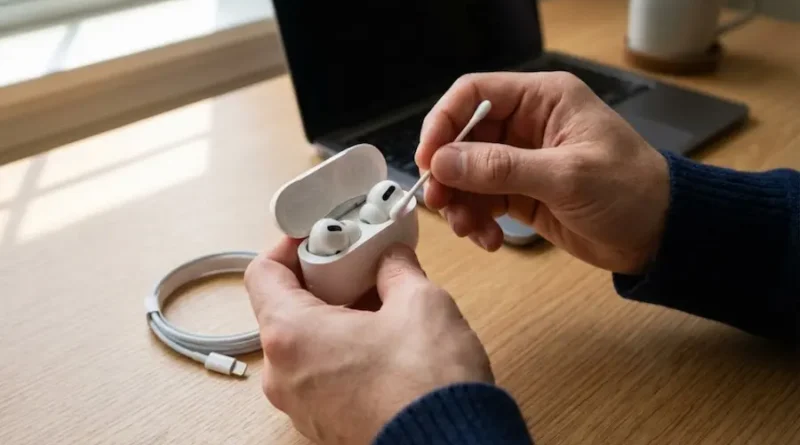
Fix #1: Clean Those Dirty Contacts (Works 80% of the Time)
This is the magic solution that saved my AirPods. Takes 2 minutes, costs nothing.
What you need:
- A cotton swab (Q-tip)
- A soft, dry cloth
- Good lighting (use your phone flashlight)
Here’s what to do:
Step 1: Take both AirPods out of the case.
Step 2: Look at the silver metal part at the bottom of each AirPod. See any gunk? Gently wipe it with a dry cloth.
Step 3: Now look inside the charging case. You’ll see two small holes where the AirPods sit. At the bottom of each hole, there are tiny metal contacts (they look like little dots).
Step 4: Take your cotton swab and gently clean those metal contacts. Don’t push too hard. Just wipe away any dust or dirt you see.
Step 5: Also clean the charging port at the bottom of your case (where you plug in the cable).
Step 6: Put your AirPods back in the case and check if the orange or green light comes on.
Pro tip from my experience: Even if you don’t see any dirt, clean it anyway. Sometimes the dirt is invisible but still blocks the connection.
Fix #2: Make Sure Your Charging Case Has Battery
This sounds obvious, but it happens more than you think. Your AirPods can’t charge from an empty case.
Fast check:
Put your AirPods in the case, close the lid, then open it near your iPhone. A popup should appear showing battery levels. If your case shows 0% or doesn’t show anything, your case needs charging first.
Charge your case:
- Plug it in for at least 15-20 minutes
- Use the original Apple cable if you have it
- Make sure you see the orange light when plugged in
Wait 30 minutes, then try charging your AirPods again.
Fix #3: Check Your Charging Cable (The Hidden Problem)
I once spent 2 hours troubleshooting my AirPods, only to discover my cable was damaged inside. It looked perfectly fine from the outside.
Test your cable:
Method 1: Try charging something else (like your iPhone) with the same cable. Does it charge normally?
Method 2: Borrow a friend’s cable or try a different one you have at home.
Method 3: Look closely at both ends of the cable. Any fraying? Any bending near the connectors?
Important: Cheap third-party cables often cause charging problems. If you’re using a non-Apple cable, that might be your issue. I learned this the hard way.
Fix #4: Reposition Your AirPods in the Case
Sometimes your AirPods aren’t sitting properly, so they’re not making contact with the charging points.
Do this:
Step 1: Take both AirPods out completely.
Step 2: Make sure nothing is stuck in the charging case (check for debris).
Step 3: Put each AirPod back in carefully. You should feel a slight magnetic “click” when they’re in the right position.
Step 4: The LED light should turn on for a few seconds. If it doesn’t, try repositioning them again.
Bonus tip: If one AirPod charges but the other doesn’t, the problem is usually with the non-charging one’s position or dirty contacts.
Fix #5: Reset Your AirPods (The Nuclear Option)
When nothing else works, resetting usually does. I’ve used this trick at least 5 times, and it works like magic.
Here’s the exact process:
Step 1: Put both AirPods in the charging case and close the lid.
Step 2: Wait 30 seconds (seriously, count to 30).
Step 3: Open the lid of your case.
Step 4: On your iPhone, go to Settings → Bluetooth.
Step 5: Find your AirPods in the device list and tap the “i” icon next to them.
Step 6: Tap “Forget This Device” and confirm.
Step 7: Now comes the reset part. Keep the case lid open and find the small button on the back of the case.
Step 8: Press and hold that button for 15 seconds. Watch the light on the front of the case. It will flash orange (amber), then turn white.
Step 9: When you see the white light, your AirPods are reset. Now you can pair them with your iPhone again like new AirPods.
Warning: This will erase your custom settings (like the name you gave your AirPods). But if it fixes your charging problem, it’s worth it.
Fix #6: Try Wireless Charging (If You Have It)
If you have a Wireless Charging Case (the more expensive version), this trick might help.
What to do:
Instead of using the cable, place your case on a wireless charging pad (or any Qi charger). Make sure the LED light faces up.
Wait 5 minutes. If the light turns on, your case is charging. This means your charging port might be damaged, but wireless charging still works.
If wireless charging works but cable doesn’t:
- Your charging port is probably damaged or too dirty
- Try cleaning it more thoroughly
- Consider using wireless charging as your main method
Fix #7: Update Your iPhone Software
Weird but true: Sometimes your iPhone’s old software causes AirPods charging issues.
Quick check:
Go to Settings → General → Software Update.
If there’s an update available, install it. After the update, try charging your AirPods again.
Why this works: Apple regularly fixes bugs related to AirPods in software updates. A simple update might solve your problem without any hardware fixes.
Still Not Working? Here’s What to Do Next
If you tried everything above and your AirPods still won’t charge, you might have a real hardware problem.
Possible issues:
- Dead battery in your AirPods or case (rare but happens after 2-3 years of heavy use)
- Damaged charging contacts that need professional repair
- Water damage (did you accidentally wash them?)
Your options:
Option 1: Contact Apple Support (free to ask)
- Open Apple Support app on your iPhone
- Or visit support.apple.com
- They can run diagnostics remotely
Option 2: Visit an Apple Store
- Book a Genius Bar appointment
- They’ll test your AirPods for free
- If under warranty, they might replace them for free
Option 3: Check your warranty
- AirPods come with 1 year warranty
- If you bought AppleCare+, you’re covered for 2 years
- Go to checkcoverage.apple.com to check your status
How to Prevent This Problem in the Future
After fixing my AirPods multiple times, I learned these prevention tips:
Weekly maintenance (takes 1 minute):
- Wipe down your AirPods and case with a dry cloth
- Clean the charging contacts once a week
- Keep your case in a pouch or pocket without lint
Charging habits:
- Don’t let your case battery drop to 0% too often
- Charge your case overnight once a week
- Use good quality cables (original Apple or certified brands)
Storage tips:
- Don’t leave AirPods in extreme heat or cold
- Keep the case closed when not using
- Avoid humid places (like bathroom counters)
The 30-day rule I follow: Once a month, I clean my AirPods thoroughly and reset them. This prevents 90% of problems before they even start.
The Bottom Line
Here’s what you should remember:
Most charging problems are caused by:
- Dirty charging contacts (80% of cases)
- Dead charging case battery
- Faulty cables
- Software glitches
The fastest fix: Clean the contacts, charge your case, and reset your AirPods. This combination solves most issues in under 10 minutes.
When to worry: If nothing works after trying all these fixes, you probably need professional help or a replacement.
Quick Recap: The 5-Minute Fix
If you’re in a hurry, do this right now:
- Clean everything (AirPods + case contacts) with a dry cloth
- Plug in your case for 15 minutes with a good cable
- Reset your AirPods using the button on the case
- Reposition them properly in the case
- Check if the LED light comes on
This works for most people. In fact, when I had this problem last month, cleaning the contacts alone fixed it.
One More Thing…
Remember, AirPods are expensive little devices, but they’re not fragile. Most charging issues are simple fixes that don’t require any technical knowledge or money.
Before you panic and order new AirPods:
- Try these fixes first
- Give each solution at least 5 minutes
- Clean more thoroughly than you think necessary
- Reset even if you don’t want to
Have you fixed your AirPods using one of these methods? I’d love to hear which solution worked for you. And if you’re still stuck, describe your exact problem in the comments below. Sometimes the solution is simpler than we think.
Stay charged, stay connected!
Visit the rest of our site for more tech updates.