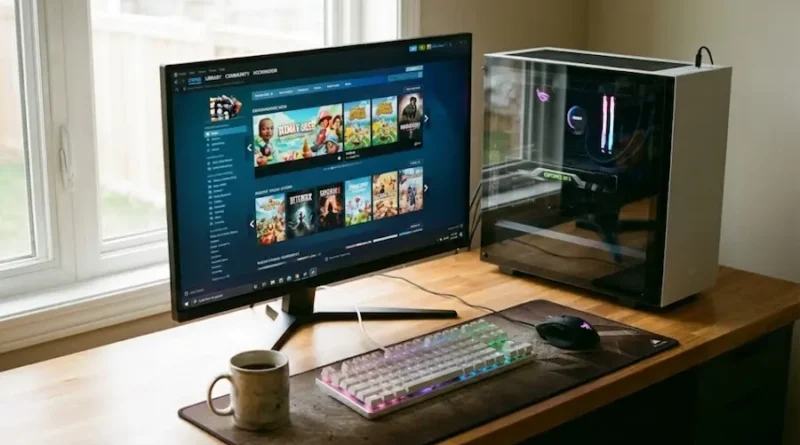
How to Download PC Games (Safe, Legal, and Free Options Included)
So you want to download PC games but don’t know where to start? I get it. The internet is full of sketchy websites, confusing instructions, and people acting like you should already know everything.
Let me break this down for you in the simplest way possible. By the end of this guide, you’ll be downloading games like a pro.
Why People Struggle to Download PC Games (And How You’ll Avoid It)
Here’s the thing: downloading PC games isn’t hard. But there are so many options out there that it gets overwhelming fast. Steam? Epic Games? Torrents? Which one’s safe? Which one’s legal?
Don’t worry. I’m going to walk you through everything step by step.
The Safe and Legal Ways to Download PC Games
Let’s start with the methods that won’t get you in trouble or fill your computer with viruses.
Method 1: Steam (The Most Popular Choice)
Steam is like the Amazon of PC games. It’s trusted, it’s easy, and it has thousands of games.
Here’s how to use it:
- Go to store.steampowered.com
- Click “Install Steam” at the top right
- Download the installer and run it
- Create a free account (you’ll need an email)
- Browse games, buy what you want, and click “Install”
That’s it. Steam will download and install the game for you automatically. You can even play many games offline after downloading.
Pro tip: Steam has massive sales multiple times a year. Wait for those if you want to save serious money.
Method 2: Epic Games Store (Get Free Games Every Week)
Epic Games gives away free games every single week. No catch. No subscription. Just free games.
How to grab them:
- Visit epicgames.com/store
- Download the Epic Games Launcher
- Make a free account
- Check the store every Thursday for new free games
- Click “Get” on the free game (you keep it forever)
I’ve grabbed over 200+ games this way without spending a cent. Even if you don’t play them right away, claim them. They’re yours to keep.
Method 3: GOG (Games Without Any Restrictions)
GOG.com is special because games here have no DRM. That means once you download them, they’re truly yours. No internet required to play. Ever.
Good for:
- Older classic games
- People who want full control over their games
- Playing offline permanently
The process is similar to Steam. Download GOG Galaxy (their launcher), buy games, and install.
Method 4: Xbox App (For Game Pass Subscribers)
If you have Xbox Game Pass for PC, you get access to hundreds of games for about $10 a month.
How it works:
- Open the Xbox app (comes with Windows 10 and 11)
- Sign in with your Microsoft account
- Subscribe to Game Pass
- Browse the library and install whatever you want
Think of it like Netflix, but for games.
Method 5: Direct Downloads from Game Developers
Some developers sell games directly from their websites. This is common with indie games.
Examples:
- Minecraft (minecraft.net)
- League of Legends (leagueoflegends.com)
- Valorant (playvalorant.com)
Just visit the official site, create an account, and download their launcher or game installer.
What About Free Games? Are They Safe?
Yes, but you need to be careful where you get them.
Safe places for free games:
- Epic Games Store (weekly freebies)
- Steam (has a free-to-play section)
- Itch.io (indie games, many free)
- Official developer websites
Places to avoid:
- Random websites offering “free downloads” of paid games
- Torrent sites (illegal and risky)
- Sites with tons of ads and pop-ups
- Anything that asks you to complete surveys
If it seems too good to be true, it probably is.
Step by Step: Downloading Your First Game (Beginner Friendly)
Let me walk you through downloading a game from start to finish. We’ll use Steam as an example since it’s the easiest.
Step 1: Get Steam
Open your web browser and type “steam download” in Google. Click the official Steam website. Download the installer. It’s a small file, maybe 1-2 MB.
Step 2: Install Steam
Double-click the file you just downloaded. Follow the simple instructions. Click “Next” a few times. It’ll install in a couple of minutes.
Step 3: Create Your Account
Open Steam. Click “Create New Account.” Enter your email, pick a username, and create a password. Check your email to verify your account.
Step 4: Browse Games
Click “Store” at the top. You can search for specific games or browse categories. There are free games, paid games, games on sale, you name it.
Step 5: Get a Game
Found something you like? Click on it. If it’s free, click “Play Game.” If it costs money, click “Add to Cart” and finish the purchase.
Step 6: Download and Install
After getting the game, go to your “Library.” Find the game in your list. Click “Install.” Choose where to save it (your C: drive is fine). Steam will download and install everything automatically.
Step 7: Play
Once it says “Ready to Play,” just click “Play” and you’re good to go.
See? Not complicated at all.
Common Problems and How to Fix Them
The download is too slow
Check your internet connection first. Close other programs using the internet (like YouTube or Netflix). In Steam, go to Settings, then Downloads, and pick a different download region.
I don’t have enough space
PC games can be huge (some are 50-100 GB). Check how much space you have by opening “This PC” on Windows. You might need to delete old files or games you don’t play anymore.
The game won’t start
Make sure your computer meets the minimum requirements. Right-click the game in Steam, click Properties, then Local Files, then “Verify Integrity of Game Files.” This fixes corrupted downloads.
It says I need to update my drivers
Drivers are software that help your computer talk to your graphics card. Visit nvidia.com or amd.com (depending on your graphics card) and download the latest drivers.
Do You Need a Powerful Computer?
Not always. It depends on the game.
Low-end PC? Try these games:
- Stardew Valley
- Terraria
- Among Us
- Minecraft
- Older games (anything before 2015)
Mid-range PC? You can play:
- Fortnite
- Valorant
- League of Legends
- Most games from the last 5 years
High-end PC? Go crazy:
- Cyberpunk 2077
- Red Dead Redemption 2
- The latest AAA games
To check if a game will run on your PC, visit sites like Can You Run It that scan your computer and tell you if you meet the requirements.
How Much Internet Data Do Games Use?
This varies a lot, but here’s a rough idea:
- Small indie games: 500 MB to 2 GB
- Medium games: 10 GB to 30 GB
- Large AAA games: 50 GB to 150 GB
Call of Duty: Modern Warfare, for example, is over 200 GB. Plan accordingly if you have limited internet.
Can You Play Games Offline After Downloading?
Most of the time, yes. But it depends on the platform.
Steam: Most single-player games work offline (set Steam to offline mode first)
Epic Games: Same deal. Go offline in settings.
GOG: 100% offline. Always.
Xbox Game Pass: Requires internet check-ins every so often
Online multiplayer games: Obviously need internet to play
Is It Legal to Download Games for Free?
If the game is offered for free by the developer or platform (like Epic’s weekly freebies), then yes, it’s 100% legal.
If you’re downloading a paid game from a random website or torrent for free, that’s piracy. It’s illegal and can get you in trouble. Plus, those files often contain viruses.
Just stick to the official platforms I mentioned earlier. There are tons of great free and cheap games available legally.
My Personal Recommendations for New PC Gamers
Great free games to start with:
- Fortnite (fun battle royale)
- Valorant (team shooter)
- Apex Legends (another great battle royale)
- Genshin Impact (beautiful adventure game)
Good cheap games under $10:
- Terraria (endless fun)
- Stardew Valley (super relaxing)
- Portal 2 (mind-bending puzzles)
- Left 4 Dead 2 (zombie co-op)
Games everyone should try:
- Minecraft (creativity at its best)
- The Witcher 3 (amazing story)
- Red Dead Redemption 2 (if your PC can handle it)
Tips to Download Games Faster
- Use a wired connection instead of Wi-Fi if possible
- Close everything else that uses internet
- Download during off-peak hours (like late at night)
- Pause other downloads in Steam or Epic
- Restart your router if speeds are unusually slow
- Change download regions in your launcher settings
What About Game Launchers? Do You Need Them All?
Honestly, you’ll probably end up with a few. Here’s what I have installed:
- Steam (for most games)
- Epic Games (for free weekly games)
- Xbox App (for Game Pass)
That covers like 90% of what I play. Don’t stress about having too many. They don’t slow down your computer when they’re just sitting there closed.
Keeping Your Games Updated
Good news: most launchers update games automatically.
In Steam: Settings → Downloads → Check “Allow downloads during gameplay” (or not, if you want to save bandwidth)
In Epic: It updates automatically when you launch the app
In Xbox App: Same thing, auto-updates
You can also manually check for updates by right-clicking a game and selecting “Update” or “Check for Updates.”
You’re Ready to Start Gaming
Look, downloading PC games really isn’t rocket science. Pick a platform (I recommend starting with Steam or Epic), create an account, and start downloading.
Don’t overthink it. Don’t fall for sketchy “free download” sites. Stick to the official platforms, and you’ll be fine.
The PC gaming world is huge and honestly pretty amazing once you get into it. There’s something for everyone, whether you like shooting games, puzzle games, story games, or just messing around in creative sandboxes.
Now stop reading and go download something fun. You’ve got this.
Visit the rest of our site for more tech updates.