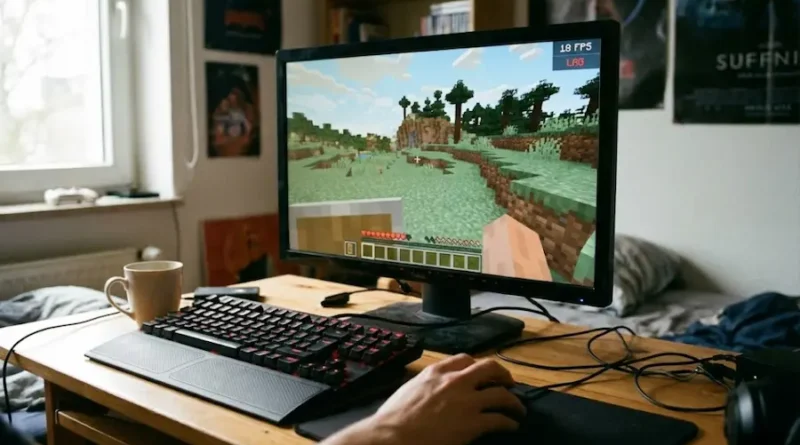
How to Fix Minecraft Lag: 8 Simple Steps That Work
Is your Minecraft game freezing? Does your character teleport randomly? Are blocks taking forever to break?
Don’t worry! You’re not alone. Over 150 million players face lag issues every day. But here’s the good news: most lag problems can be fixed in just 5 minutes.
This guide shows you exactly how to fix Minecraft lag, whether you’re playing on PC, Mac, mobile, or console. No tech skills needed!
What is Minecraft Lag? (Understanding the Problem)
Before we fix anything, let’s understand what’s happening.
Minecraft lag comes in 3 types:
1. FPS Lag (Choppy Visuals)
- Your screen looks like a slideshow
- Game stutters and freezes
- Chunks load very slowly
- Cause: Your computer is struggling
2. Network Lag (Teleporting Players)
- Your character jumps back to old positions
- Blocks reappear after you break them
- Other players are teleporting
- Cause: Slow internet connection
3. Server Lag (Everything Slow)
- The whole server feels frozen
- Everyone is experiencing delays
- Cause: The server itself is overloaded
Now that you know which type you have, let’s fix it!
Fix #1: Lower Your Video Settings (Works Instantly!)
This is the fastest way to fix FPS lag. Here’s how:
Step 1: Open Minecraft and click Options
Step 2: Click Video Settings
Step 3: Change these settings:
- Render Distance: Set to 8 or lower (12 is default)
- Graphics: Switch from “Fancy” to “Fast”
- Smooth Lighting: Turn it OFF
- Clouds: Turn OFF
- Particles: Set to “Minimal”
- Max Framerate: Set to “60 FPS”
Why this works: Your computer has to draw less stuff, so it runs faster!
Fix #2: Close Background Apps (Frees Up Power)
Your computer can’t focus if it’s doing 10 things at once!
For Windows Users:
- Press CTRL + SHIFT + ESC (opens Task Manager)
- Look at the apps using lots of “CPU” or “Memory”
- Right-click them and choose “End Task”
Close these common culprits:
- Google Chrome (uses lots of RAM)
- Steam
- Discord
- Any downloading software
For Mac Users:
- Press Command + Space
- Type “Activity Monitor”
- Close apps using high CPU
Pro tip: Only keep Minecraft running. Nothing else!
Fix #3: Allocate More RAM to Minecraft (Improves Performance)
Minecraft needs memory to run smoothly. Here’s how to give it more:
Step 1: Open Minecraft Launcher
Step 2: Click Installations at the top
Step 3: Find your Minecraft version and click the three dots
Step 4: Click Edit
Step 5: Click More Options
Step 6: Find the line that says -Xmx2G
Step 7: Change it to -Xmx4G (this gives Minecraft 4GB of RAM)
Important: Don’t go higher than 4GB unless you have 16GB+ total RAM on your computer!
Fix #4: Install OptiFine or Sodium (Makes a Huge Difference!)
These are free performance mods that make Minecraft run way better.
OptiFine (For Java Edition):
- Download from: optifine.net
- Doubles your FPS in most cases
- Adds zoom feature (bonus!)
Sodium (Better for low-end PCs):
- Download from CurseForge
- Even faster than OptiFine
- Great for older computers
How to install:
- Download the file
- Put it in your “mods” folder (inside .minecraft)
- Run Minecraft
Both are 100% safe and used by millions!
Fix #5: Update Your Graphics Drivers (Often Forgotten!)
Old drivers = bad performance. Update them!
For NVIDIA Cards:
- Go to: nvidia.com/drivers
- Download latest driver for your card
For AMD Cards:
- Go to: amd.com/support
- Download Radeon Software
For Intel Graphics:
- Go to: intel.com/content/www/us/en/download-center
- Find your processor
After updating: Restart your computer!
Fix #6: Stop Internet Lag (For Multiplayer)
If you’re lagging in multiplayer servers, try these:
Use Wired Connection:
- Plug an Ethernet cable directly to your computer
- Wi-Fi has delays, cables don’t!
Choose Closer Servers:
- Join servers in your region (US, EU, Asia)
- Check server ping before joining
- Lower ping = less lag
Close Bandwidth Hogs:
- Stop any downloads
- Close YouTube, Netflix
- Tell family to pause their streaming
Test Your Internet:
- Go to speedtest.net
- You need at least 5 Mbps for smooth gaming
- Ping should be under 50ms
Fix #7: Update Everything (Simple But Powerful)
Outdated software causes problems. Update these:
Update Windows/Mac:
- Windows: Settings > Update & Security
- Mac: System Preferences > Software Update
Update Minecraft:
- The launcher updates automatically
- But check for new versions manually
Update Java:
- Go to: java.com
- Download the latest version
- Minecraft runs on Java, so this matters!
Fix #8: Reduce Render Distance on Servers (Server-Side Fix)
If you run your own server and it’s lagging:
Step 1: Find your server.properties file
Step 2: Open it with Notepad
Step 3: Find the line view-distance=10
Step 4: Change it to view-distance=6
Step 5: Save and restart server
This reduces how much the server has to load!
More Fixes (For Serious Lag Issues)
Still having problems? Try these:
Reduce Simulation Distance:
- Video Settings > Simulation Distance
- Lower to 5 or 6
Turn Off VSync:
- Video Settings > VSync OFF
- Reduces input delay
Use Performance Mods:
- Lithium (improves tick rate)
- Phosphor (fixes lighting lag)
- FerriteCore (reduces memory usage)
Clean Install Minecraft:
- Sometimes the game files get corrupted
- Backup your worlds first!
- Delete .minecraft folder
- Reinstall fresh
For Mobile/Console Players
Mobile (Android/iOS):
- Lower “Render Distance” to 6
- Turn off “Fancy Graphics”
- Close other apps
- Restart your phone
PlayStation/Xbox:
- Clear at least 10GB of storage
- Rebuild database (PlayStation)
- Hard reset console
Nintendo Switch:
- Play docked mode (better performance)
- Lower render distance
- Limit number of entities in your world
Common Mistakes to Avoid
❌ Don’t allocate too much RAM (8GB+ can actually slow things down)
❌ Don’t install 50 mods at once (each one adds load)
❌ Don’t use ultra HD texture packs (unless you have a gaming PC)
❌ Don’t play on crowded servers with weak internet
✅ Do restart Minecraft after changing settings
✅ Do test one fix at a time to see what works
✅ Do backup your worlds before making big changes
Final Checklist: Is Your Lag Fixed?
After trying these fixes, check:
- [ ] FPS is above 30 (60 is ideal)
- [ ] No stuttering when walking around
- [ ] Blocks break instantly
- [ ] No teleporting in multiplayer
- [ ] Game feels smooth and responsive
If you’re still lagging: Your computer might not meet minimum requirements. Consider upgrading RAM or getting a better graphics card.
Wrap Up
Minecraft lag is annoying, but it’s usually easy to fix!
Start with these 3 things:
- Lower your video settings
- Close background apps
- Install OptiFine
These alone will solve lag for 90% of players.
If you’re still having issues, work through the other fixes in this guide. One of them will work!
Remember: Every computer is different. Try each fix and see what gives you the best results.
Now get back to building, mining, and having fun – lag-free!
Did this guide help you? Share it with friends who also struggle with Minecraft lag!
Visit the rest of our site for more tech updates.