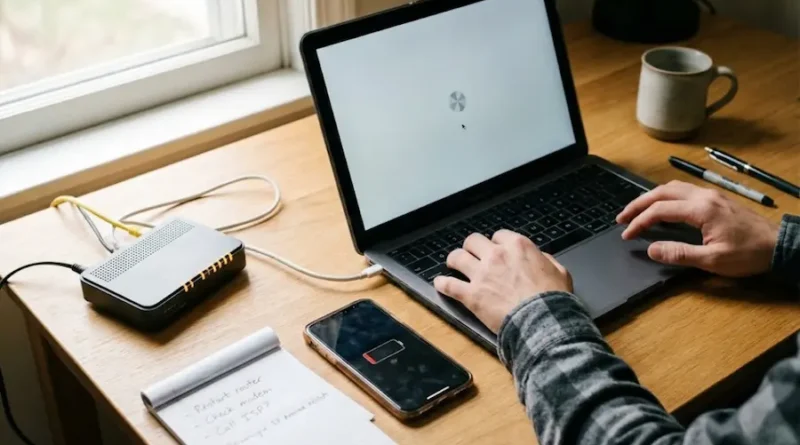
How to Fix Common Tech Problems in Minutes
We’ve all been there. You’re working on something important, and suddenly your computer freezes. Or your phone won’t charge. Or the internet just stops working for no reason.
Tech problems are frustrating. They waste your time and make you feel helpless. But here’s the good news: most common tech problems are easy to fix. You don’t need to be a computer expert or call expensive tech support.
This guide shows you how to solve the most common tech problems step by step. These are real solutions that work for real people.
Why Your Tech Acts Up (And Why It’s Not Your Fault)
Before we jump into solutions, let’s understand something important: technology breaks down. It’s normal. Even expensive devices have problems.
Most tech issues happen because of three simple reasons:
Software gets outdated. Apps and systems need regular updates to work properly. When you skip updates, things start breaking.
Too many programs run at once. Your device has limited memory and power. When too many things run together, everything slows down.
Files and data pile up. Over time, your device collects junk files, old downloads, and cached data. This clogs up the system.
Now let’s fix these problems.
Problem 1: Your Computer is Running Slow
This is probably the most common complaint. Your computer used to be fast, but now it takes forever to open programs or load websites.
Quick Fixes That Work
Restart your computer. I know it sounds too simple, but this fixes about 70% of speed problems. When you restart, your computer clears its memory and stops background programs. Try restarting once a week.
Close unnecessary programs. Look at your taskbar or dock. How many programs are open? Close the ones you’re not using right now. Each open program uses memory and processing power.
Clear your browser cache. Your web browser saves data to load websites faster. But after months of browsing, this saved data becomes huge and actually slows things down. Go to your browser settings and clear browsing data. Do this once a month.
Check for updates. Old software runs slower than updated software. Check for system updates and install them. Yes, updates take time, but they make everything run smoother afterward.
Remove startup programs. Many programs automatically start when you turn on your computer. You don’t need most of them. On Windows, open Task Manager and go to the Startup tab. Disable programs you don’t need immediately. On Mac, go to System Preferences, then Users and Groups, then Login Items.
When to Worry
If your computer is still slow after trying these fixes, you might have a bigger problem. Your hard drive could be failing, or you might have malware. In that case, back up your important files and consider getting professional help.
Problem 2: Internet Connection Keeps Dropping
You’re watching a video or in an important video call, and suddenly the internet stops working. Five minutes later, it’s back. Then it drops again.
Simple Solutions
The magic router restart. Unplug your router and modem. Wait 30 seconds. Plug the modem back in first. Wait until all lights are on. Then plug in the router. This clears connection errors and often fixes dropping issues.
Check your wifi signal. Are you too far from the router? Walls, floors, and distance weaken wifi signals. Move closer to your router or remove obstacles between you and the router.
Change your wifi channel. If many neighbors use wifi, their signals interfere with yours. Log into your router settings (usually by typing 192.168.1.1 in your browser) and change the wifi channel. Try channels 1, 6, or 11 for best results.
Update your router firmware. Routers need updates too. Check your router manufacturer’s website for firmware updates. This improves performance and security.
Use an ethernet cable. If possible, connect your computer directly to the router with a cable. Wired connections are faster and more stable than wifi.
Red Flags
If your internet still drops constantly, the problem might be with your internet service provider. Call them and ask them to check your connection. Sometimes the issue is on their end, not yours.
Problem 3: Phone Battery Dies Too Fast
Your phone battery used to last all day. Now it barely makes it to lunch. This is super common and usually easy to fix.
How to Save Battery Life
Lower your screen brightness. Your screen uses the most battery power. Turn down brightness or use auto-brightness. This alone can add hours to your battery life.
Turn off location services. Many apps track your location constantly. Go to your phone settings and turn off location for apps that don’t really need it. Keep it on only for maps and navigation.
Close background apps. Apps running in the background drain battery even when you’re not using them. On iPhone, swipe up and close apps. On Android, tap the recent apps button and close them.
Disable push notifications. Every notification wakes up your phone and uses power. Turn off notifications for apps you don’t need updates from immediately.
Turn on battery saver mode. Both iPhones and Android phones have battery saver modes. They reduce background activity and lower performance slightly to save power. Turn this on when your battery is low.
Check battery health. On iPhone, go to Settings, Battery, Battery Health. On Android, go to Settings, Battery, Battery Usage. If your battery health is below 80%, you might need a battery replacement.
Battery Care Tips
Don’t let your phone die completely every day. Charge it when it hits 20-30%. Don’t leave it plugged in overnight every single night. These habits make your battery last longer.
Problem 4: Computer Won’t Turn On
You press the power button and nothing happens. This is scary, but don’t panic yet.
Troubleshooting Steps
Check the basics first. Is it plugged in? Is the outlet working? Try plugging something else into the same outlet to make sure power is flowing. Check if the power cable is fully connected to your computer.
Try a hard reset. For laptops, unplug the power cable and remove the battery if possible. Press and hold the power button for 30 seconds. This drains residual power. Then reconnect everything and try turning it on.
Look for signs of life. Do any lights turn on? Do you hear any sounds? Does the fan start spinning? These clues help identify the problem.
Check your display. Sometimes the computer is actually on, but the screen is black. Try connecting to an external monitor. If that works, your laptop screen might be broken, not the whole computer.
When to Get Help
If none of these steps work, you likely have a hardware failure. This needs professional repair. Common culprits are power supply failure, motherboard issues, or hard drive failure.
Problem 5: Apps Keep Crashing
You open an app and it immediately closes. Or it crashes while you’re using it. This is annoying but usually fixable.
Quick Fixes
Force close and reopen. Completely close the app (don’t just minimize it) and open it again. This clears temporary glitches.
Restart your device. Again with the restart! But seriously, this fixes most app crashes. It clears memory and stops conflicting background processes.
Update the app. Open your app store and check for updates. Developers release updates to fix bugs and crashes. Always keep your apps updated.
Clear app cache and data. On Android, go to Settings, Apps, select the problem app, and clear cache. On iPhone, you usually need to delete and reinstall the app to clear its data.
Reinstall the app. Delete the app completely and download it fresh from the app store. This gives you a clean installation without corrupted files.
Check storage space. If your device is almost full, apps can’t function properly. Delete old photos, videos, and apps you don’t use. Keep at least 10% of your storage free.
Pattern to Watch
If the same app keeps crashing even after all these fixes, check online reviews. Other users might have the same problem. The app itself might be broken, and you’ll need to wait for the developer to fix it.
Problem 6: Can’t Connect to Bluetooth Devices
Your bluetooth headphones or speaker won’t connect. Or they connect but disconnect randomly.
Connection Solutions
Turn bluetooth off and on. On your phone or computer, toggle bluetooth off, wait 10 seconds, then turn it back on. Do the same on your bluetooth device.
Forget and reconnect. Go to bluetooth settings, find the device, and select “Forget” or “Unpair.” Then pair it again from scratch like it’s a new device.
Charge the bluetooth device. Low battery causes connection problems. Charge your bluetooth device fully and try again.
Move closer. Bluetooth only works within about 30 feet. Move your device closer to whatever you’re trying to connect to.
Remove interference. Wifi routers, microwaves, and other wireless devices can interfere with bluetooth. Move away from these or turn them off temporarily.
Check for updates. Both your phone and bluetooth device might need firmware updates. Check manufacturer websites for updates.
Compatibility Check
Some older bluetooth devices don’t work well with newer phones or computers. Check if your devices are compatible. If one device uses an old bluetooth version, it might not connect reliably.
Problem 7: Forgot Your Password
We all forget passwords. It happens to everyone. Don’t feel bad about it.
Recovery Steps
Use the “Forgot Password” link. Almost every service has this option on the login page. Click it and follow the steps. You’ll usually get a reset link via email or text message.
Check your password manager. If you use Chrome, Safari, or a password manager app, your password might be saved there. Check your saved passwords in browser settings.
Try common variations. Before resetting, try variations of passwords you usually use. Maybe you added a number or capital letter you forgot about.
Use account recovery options. Services like Google and Apple have detailed recovery processes. Answer security questions or use a backup email address to prove your identity.
Contact support. If you can’t reset your password through normal methods, contact the service’s customer support. They can verify your identity and help you regain access.
Prevention for Later
Write down important passwords in a physical notebook kept in a safe place. Or use a reputable password manager app like LastPass, 1Password, or Bitwarden. These apps remember all your passwords securely, and you only need to remember one master password.
Problem 8: Pop-Up Ads Everywhere
You’re browsing the web and suddenly pop-ups appear everywhere. Or your homepage changed to a weird search engine you never heard of.
Cleaning Your System
Install an ad blocker. Get a browser extension like uBlock Origin or AdBlock Plus. These block most pop-ups and ads automatically.
Reset your browser settings. Go to your browser settings and reset to default. This removes unwanted extensions and changes.
Check installed programs. On Windows, go to Settings, Apps, and look for programs you don’t recognize. Uninstall anything suspicious. On Mac, check Applications folder and drag suspicious apps to trash.
Run a malware scan. Download Malwarebytes (it’s free for scanning) and run a full scan. This finds and removes adware and malware causing pop-ups.
Remove browser extensions. Go to your browser’s extensions or add-ons page. Remove any extensions you don’t remember installing.
Stay Safe
Don’t click on pop-ups that say your computer is infected or you won a prize. These are scams. Close them using the X button or close the entire browser tab. Don’t download “cleaning” software from pop-ups.
Problem 9: Files Won’t Open
You double-click a file and get an error message. Or the file opens in the wrong program.
Opening Stubborn Files
Check the file extension. The file extension (like .jpg, .pdf, .docx) tells your computer which program to use. Make sure the file has the right extension for its type.
Download the right program. If you don’t have a program that opens that file type, you need to download one. For PDFs, use Adobe Reader. For Word documents, use Microsoft Word or Google Docs.
Change the default program. Right-click the file and select “Open with” and choose the correct program. Check the box that says “Always use this program.”
Try opening online. Many files can open in Google Drive or Microsoft OneDrive even if you don’t have the right program installed on your computer.
Check if the file is corrupted. If the file won’t open in any program, it might be damaged. Try downloading it again or asking for another copy.
File Conversion
If you need to convert a file to a different format, use free online converters like CloudConvert or Zamzar. Upload your file, choose the output format, and download the converted file.
Problem 10: External Devices Not Recognized
You plug in a USB drive, external hard drive, or printer, and your computer doesn’t see it.
Recognition Fixes
Try different ports. USB ports sometimes fail. Plug your device into a different USB port on your computer.
Restart everything. Restart your computer with the device unplugged. Then plug in the device and let your computer detect it fresh.
Update drivers. Your computer needs drivers (special software) to communicate with devices. Go to Device Manager on Windows or System Report on Mac and check if the device appears. If it has a yellow warning icon, update its driver.
Check the cable. Cables go bad more often than devices. Try a different cable if you have one. Many USB cable problems look like device problems.
Format the drive. If it’s a storage device, it might need formatting. Warning: formatting erases everything on the drive. Only do this if the drive is empty or you have backups.
Power Issues
Some external devices need more power than USB ports provide. If you’re using a USB hub, try plugging directly into the computer. Or use a powered USB hub that has its own power supply.
Preventing Future Tech Problems
Now that you know how to fix common problems, here’s how to prevent them from happening in the first place.
Keep everything updated. Set your devices to update automatically. Updates include bug fixes that prevent problems.
Restart regularly. Don’t leave your computer or phone on for weeks. Restart at least once a week to clear memory and fix small glitches.
Keep storage space free. Don’t fill your device completely. Keep at least 15% free space for smooth operation.
Use antivirus software. Install reputable antivirus software and keep it updated. This prevents malware that causes problems.
Handle devices carefully. Don’t drop your phone or laptop. Don’t eat or drink near your electronics. Physical damage causes problems that are expensive to fix.
Backup important files. Use cloud storage like Google Drive, iCloud, or Dropbox. Or use an external hard drive. When something goes wrong, you won’t lose everything.
When DIY Isn’t Enough
Sometimes you need professional help. Know when to stop trying yourself:
Physical damage. If you dropped your device or spilled liquid on it, take it to a repair shop. Don’t try to fix hardware damage yourself.
Smoke or burning smell. Turn off the device immediately and unplug it. Don’t use it again until a professional checks it.
Nothing works. If you’ve tried everything in this guide and the problem persists, you need expert diagnosis.
Data recovery. If you can’t access important files and you don’t have backups, don’t keep trying. Each attempt might damage data further. Get professional data recovery help.
Warranty concerns. If your device is still under warranty, don’t open it up or try major repairs yourself. You might void the warranty. Contact the manufacturer instead.
Final Thoughts
Tech problems are frustrating, but most of them have simple solutions. Before you panic or spend money on repairs, try the fixes in this guide.
Remember these key principles:
Restart often. It really does fix most problems.
Keep everything updated. Updates prevent issues before they start.
Don’t ignore warning signs. Small problems become big problems if you ignore them.
Back up your data. When things go really wrong, backups save you.
You don’t need to be a tech expert to fix common tech problems. You just need to know where to start and be willing to try simple solutions first.
Next time your computer runs slow or your internet drops, come back to this guide. Follow the steps, and you’ll probably solve the problem yourself.
Save this article. Share it with friends who always ask for tech help. And remember: most tech problems are easier to fix than they seem.
Now go forth and fix those tech problems with confidence!
Visit the rest of our site for more tech updates.