How to Speed Up Your Slow Computer: 12 Simple Tricks That Actually Work
Why Is Your Computer So Slow?
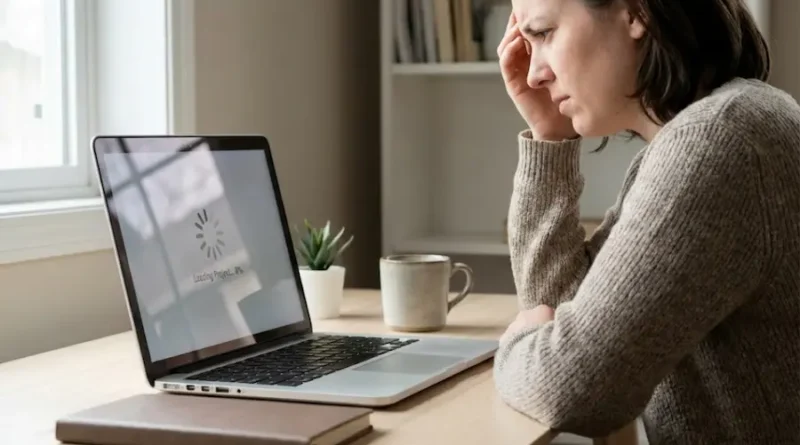
Have you ever felt like throwing your computer out the window?
You click on a program… and wait. And wait. And wait some more.
Your computer takes forever to start. Opening a browser feels like watching paint dry. Even typing has a delay.
I get it. I’ve been there too.
The good news? Your computer isn’t broken. It’s just tired and needs a little help.
In this guide, I’ll show you 12 simple ways to make your computer run like new again. No tech degree needed. No expensive software required.
Just easy steps that anyone can follow.
Let’s get started!
Fast Results: Speed Improvement in 5 Minutes
1. Restart Your Computer (Seriously, Do It Now)
I know this sounds too simple. But when was the last time you actually restarted your computer?
Most people just close their laptop or put it to sleep. That’s not the same.
Why this works: Restarting clears your computer’s memory and stops programs running in the background.
How to do it:
- Windows: Click Start > Power > Restart
- Mac: Click Apple logo > Restart
Helpful tip: Restart your computer at least once a week. Think of it as a mini vacation for your PC.
2. Close Programs You’re Not Using
Right now, how many programs do you have open?
Check your taskbar (bottom of screen on Windows) or Dock (bottom on Mac). You might be surprised.
Each open program uses your computer’s brain power. Too many programs = slow computer.
What to do:
- Close any program you’re not actively using
- Look for programs you didn’t even know were open
- Check your system tray (bottom right corner on Windows)
I once found 23 programs running on my computer. No wonder it was slow!
3. Delete Temporary Files (Free Up Space Instantly)
Your computer stores temporary files every time you use it. These files pile up like old newspapers in your garage.
Over time, they take up tons of space and slow everything down.
For Windows users:
- Press Windows key + R
- Type: %temp%
- Press Enter
- Select all files (Ctrl + A)
- Delete them (press Delete key)
For Mac users:
- Open Finder
- Click Go > Go to Folder
- Type: ~/Library/Caches
- Delete old cache folders (be careful with system folders)
You might free up 5-10 GB of space! That’s like clearing out a messy closet.
Medium Fixes: 15-30 Minutes Well Spent
4. Uninstall Programs You Never Use
Open your programs list right now. I bet you’ll find apps you installed once and forgot about.
Maybe a photo editor you tried last year. Or that game you played twice.
These programs sit on your computer eating up space and resources.
How to uninstall:
Windows:
- Go to Settings > Apps > Installed apps
- Scroll through the list
- Click on programs you don’t use
- Click Uninstall
Mac:
- Open Finder
- Go to Applications folder
- Drag unwanted apps to Trash
- Empty Trash
I removed 15 programs I never used and my computer felt 50% faster.
5. Disable Startup Programs
Here’s a secret: Many programs automatically start when you turn on your computer.
You don’t need most of them running right away. They just slow down your startup time.
Windows – How to disable:
- Press Ctrl + Shift + Esc (opens Task Manager)
- Click “Startup” tab
- Look for programs you don’t need at startup
- Right-click and select “Disable”
Mac – How to disable:
- Go to System Settings > General > Login Items
- Select programs you don’t need
- Click the minus (-) button
Programs safe to disable:
- Spotify
- Skype
- Adobe updaters
- Random game launchers
Don’t disable:
- Antivirus software
- Important system programs
6. Update Your Operating System
I know, I know. Updates are annoying.
But they’re like vitamins for your computer. They fix bugs, patch security holes, and improve performance.
How to update:
Windows:
- Go to Settings > Update & Security
- Click Check for updates
- Install available updates
Mac:
- Click Apple logo > System Settings
- Click General > Software Update
- Click Update Now
Schedule updates for when you’re not using your computer, like overnight.
7. Run Disk Cleanup
Your hard drive gets messy over time. Think of it like a teenager’s bedroom.
Disk Cleanup is like having a cleaning crew come through.
Windows users:
- Type “Disk Cleanup” in search bar
- Select your main drive (usually C:)
- Check all boxes
- Click OK and then Delete Files
Mac users:
- Go to Apple logo > About This Mac > Storage
- Click Manage
- Follow recommendations to improve storage
This can free up 10-20 GB easily!
More Powerful Tricks: Maximum Performance
8. Upgrade to an SSD (Seriously Worth It!)
If your computer has an old hard drive (HDD), upgrading to a Solid State Drive (SSD) is the best money you’ll ever spend.
Why it matters:
- HDDs are like old cassette tapes – slow and mechanical
- SSDs are like instant digital downloads – super fast
An SSD can make your computer 5-10 times faster. Not joking.
Cost: $50-150 for most computers
Note: This requires some tech knowledge or professional help. But it’s worth it!
9. Add More RAM (If Possible)
RAM is your computer’s short-term memory. More RAM = more things your computer can do at once.
Check your current RAM:
- Windows: Right-click “This PC” > Properties
- Mac: Apple logo > About This Mac
How much do you need?
- Basic use: 8 GB
- Heavy use (gaming, video editing): 16 GB or more
If you have 4 GB or less, upgrading will make a huge difference.
10. Scan for Viruses and Malware
Sometimes your computer is slow because unwanted guests are living in it.
Viruses and malware run in the background, stealing your computer’s power.
Use these free tools:
- Windows Defender (built into Windows)
- Malwarebytes (free version)
- Avast (free antivirus)
Run a full scan at least once a month. It’s like a health checkup for your computer.
11. Adjust Visual Effects (Windows)
Windows has fancy animations and effects. They look pretty but slow things down.
Turn them off:
- Search for “Performance” in Windows search
- Click “Adjust the appearance and performance of Windows”
- Select “Adjust for best performance”
- Click Apply
Your computer won’t look as fancy, but it’ll run much faster.
12. Keep Your Desktop Clean
This might sound weird, but a cluttered desktop actually slows your computer.
Each icon on your desktop uses memory. The more icons, the more memory used.
My rule: Keep only 5-10 items on your desktop.
Create folders to organize everything else. Name them clearly:
- “Work Projects”
- “Personal Photos”
- “Downloads to Sort”
A clean desktop = a fast computer.
Bonus Tips: Maintain Speed Long-Term
Do these weekly:
- Restart your computer
- Close unused programs
- Check startup programs
Do these monthly:
- Delete temporary files
- Run virus scans
- Update software
Do these yearly:
- Uninstall unused programs
- Full system cleanup
- Consider hardware upgrades
Common Mistakes to Avoid
❌ Don’t install “speed booster” programs – Most are scams that actually slow you down
❌ Don’t delete files randomly – You might delete something important
❌ Don’t ignore updates forever – They really do help
❌ Don’t fill your hard drive to 100% – Leave at least 10-15% free space
When to Get Professional Help
Sometimes your computer needs more than these fixes.
Get help if:
- Your computer is over 7-8 years old
- It’s still slow after trying everything
- You hear weird noises from the hard drive
- Programs crash constantly
A repair shop can diagnose hardware problems you can’t fix yourself.
Conclusion
You don’t need to buy a new computer every time it gets slow.
Most slow computer problems have simple solutions. Start with the fast results from this guide. Then move to the medium fixes if needed.
The best part? These tips work for any computer – Windows, Mac, old or new.
Your computer helped you so much. Now it’s time to help it back.
Which tip will you try first? Start with restarting and closing unused programs. You’ll notice a difference in just 5 minutes.
Remember: A little maintenance goes a long way. Treat your computer well, and it’ll serve you for years to come.
Visit the rest of our site for more tech updates.